Initial login#
The initial login is your first step after installing i-doit. Here you will learn which default users exist, how to log in, and what you should pay attention to right after logging in.
Default users and groups#
Please change the passwords of the default users after installation!
i-doit comes with several default users, each assigned to a group with predefined permissions:
| User | Password | Group | Permissions (summary) |
|---|---|---|---|
| admin | admin | Admin | All permissions, including administration |
| archivar | archivar | Archivar | Read and edit |
| author | author | Author | Create, edit, archive and execute |
| editor | editor | Editor | Read and edit |
| reader | reader | Reader | Read |
| systemapi | - | - | Used for internal functions |
All listed users -- with the exception of systemapi -- receive their permissions through the groups of the same name.
Logging in#
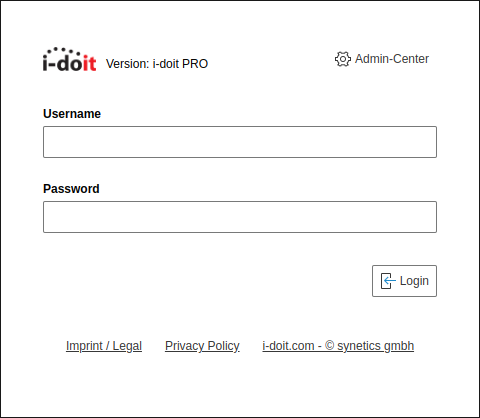
For the first login, it is best to use the admin user, as this user has no functional restrictions.
Adding additional users and groups#
Every user in i-doit is an object of the type Persons. After the first login, you should urgently perform the following steps:
- Set up an LDAP connection or create additional local users.
- Change the credentials of the default users: Navigate to the object type group Contacts, then to the object type Persons, select the respective user and modify the category Persons → Login.
- Alternatively, you can archive the default Persons objects -- this will disable their login.
Local administrator
Even if an LDAP directory server or an Active Directory (AD) is being used, it is advisable to still create a local user with full permissions. If the external service becomes unavailable, you can still log in with the local user.
Welcome text#
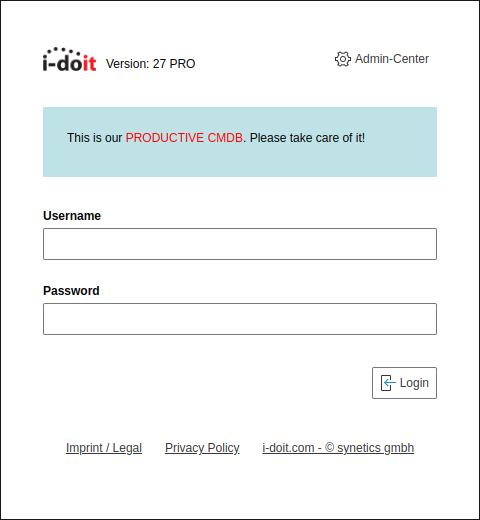
You can display a custom text to users directly on the login page. Configure this in the Admin-Center under System settings → Login → Welcome text for Login.