Advanced settings#
The advanced settings allow you to adjust the behavior of object lists to your requirements -- from the number of entries per page to deletion options.
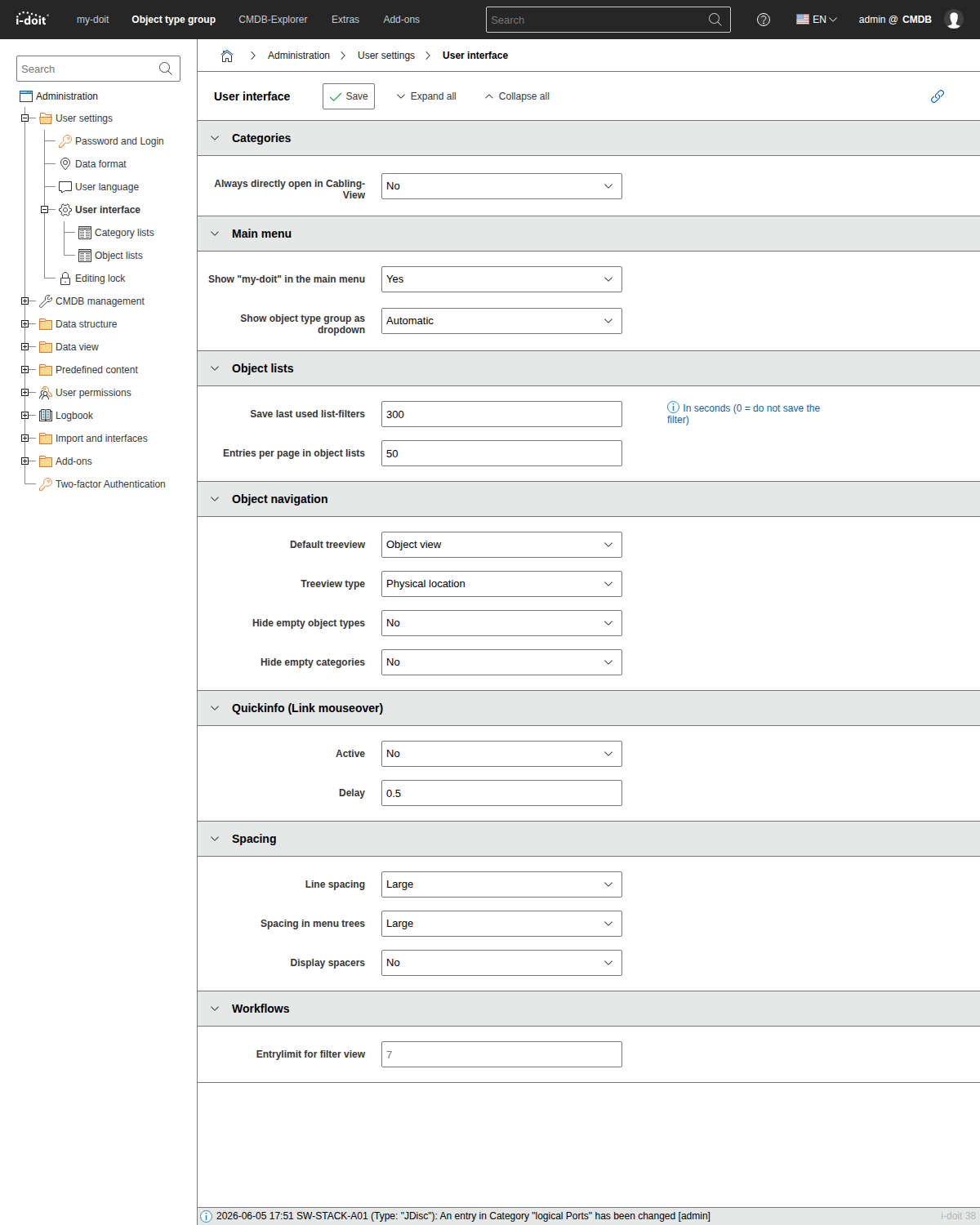
Adjusting the number of objects per page#
You set the number of displayed objects per page under Administration → User settings → User interface. Since this is a user-specific setting, each user can choose their own value. Note: A very high value can reduce performance.
Maximum length of object titles#
Depending on how many attributes or columns are displayed in a list, it may be useful to limit the maximum length of the object title. If an object title exceeds this length, it is abbreviated with three dots (...) from the specified length. The maximum length can be adjusted under Administration → [Tenant name] Administration → Settings for [Tenant name] → Maximum length of strings → Object title in lists. Enter the desired maximum character length as a positive integer in the text field.
(De)activating the Quickpurge button#
The action bar in object lists can be extended with the Quickpurge button. Under Administration → [Tenant name] Administration → Settings for [Tenant name] → CMDB → Enable Quickpurge button, select the value yes in the drop-down menu to show the button, or no to hide it.
(De)activating drag-and-drop#
Via drag-and-drop, an object can be assigned to another object type. Under Administration → [Tenant name] Administration → Settings for [Tenant name] → Interface display → Drag 'n' Drop of objects, the function can be deactivated by selecting the value no or activated by selecting yes.
Showing templates in object lists#
Templates are not displayed in object lists in i-doit by default. However, this condition can be shown alongside Normal, Archived and Deleted as Template. This is possible under Administration → [Tenant name] Administration → Settings for [Tenant name] → Templates → Show template filter in object lists.