Search#
Targeted research in the IT documentation is often the fastest way to reach your goal -- faster than navigating through menu structures.
The Search Field#
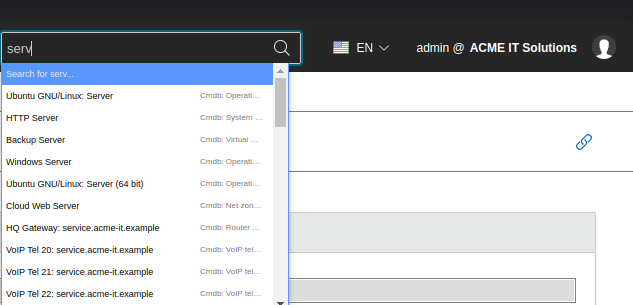
You can find the search field in the web GUI of i-doit in the upper right corner. Enter any terms there. Already while typing, initial search results (search suggestions) appear, which you can select with the mouse or keyboard to jump directly to the found record.
In addition to the free text search, the search can be limited to specific object attributes:
- If the search begins with a hash followed by the object ID (#123), pressing the Return key opens the overview page of the object with that ID.
- If the search begins with the keyword title, followed by a colon and the object title, the corresponding object is displayed (title:acme).
The Search Result#
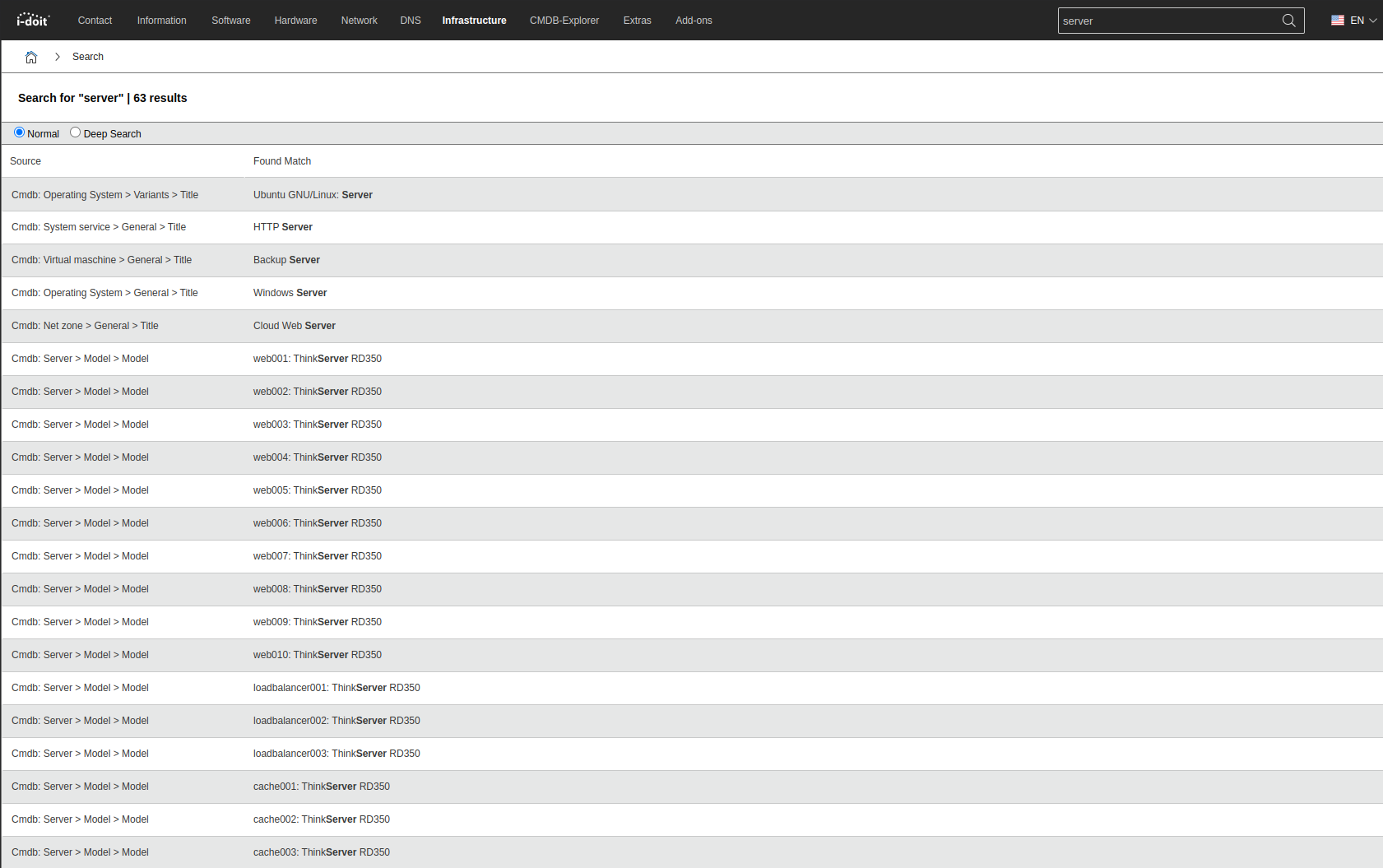
If the search suggestions do not lead to the desired result, press the Return key. You will receive a page with search results. Next to each found record, the source is displayed, for example, the attribute of a category of an object type in the CMDB module.
Set bookmarks/favorites
Every search can be referenced via the URL. If you search for the term "acme", the URL is http://i-doit/i-doit/search?q=acme. This way, search results can be saved as bookmarks/favorites in the web browser to access them more quickly.
Search Mode#
You can choose between two modes that may lead to different results:
- Normal: The indexing (see below) is used for the search. This is the default setting.
- Deep Search: Attributes are searched one after another. This search takes more time.
You select the search mode under Extras > Search after the first search. You set the default mode under Administration > [Tenant Name] Administration > Settings for [Tenant Name] > Search > Default Search Mode.
Automatic Deep Search#
If the search in the preset mode returns no or insufficient results, the Deep Search can be executed automatically. Configure this behavior under Administration > [Tenant Name] Administration > Settings for [Tenant Name] > Search > Automatic DeepSearch:
| Option | Description |
|---|---|
| Active | The search results are supplemented by an additional Deep Search. |
| Active when no results are found | The additional Deep Search is started when no results have been found. |
| Disabled | The additional Deep Search is not considered. |
Indexing#
The search index is automatically generated during installation and updates. Only for very large databases with more than 500,000 objects do you need to create it manually to ensure the search runs performantly. The indexing runs independently of user interactions in the background. Start it via the i-doit console utility:
1 | |
Alternatively, the reindex can also be executed in the i-doit administration under System Tools -> Cache / Database via the Renew Search Index button.
Memory requirements
On a Unix-like operating system, the index grows to approximately 500 MB per 1 million indexed records. The duration of a search query is generally not increased by large indexes.
Searching via the Console#
The i-doit console utility also allows you to search via the command line:
1 2 3 4 5 6 7 8 9 10 11 12 13 | |
Searching via the API#
You can also search in the IT documentation via the programmable interface (API) of i-doit. Use the idoit.search method for this:
1 2 3 4 5 6 7 8 9 10 | |