Templates
i-doit allows the creation of objects that serve as templates for new objects. Users can create a large number of objects with identical attributes -- for example, servers with the same hardware -- in a simplified manner.
Accessing#
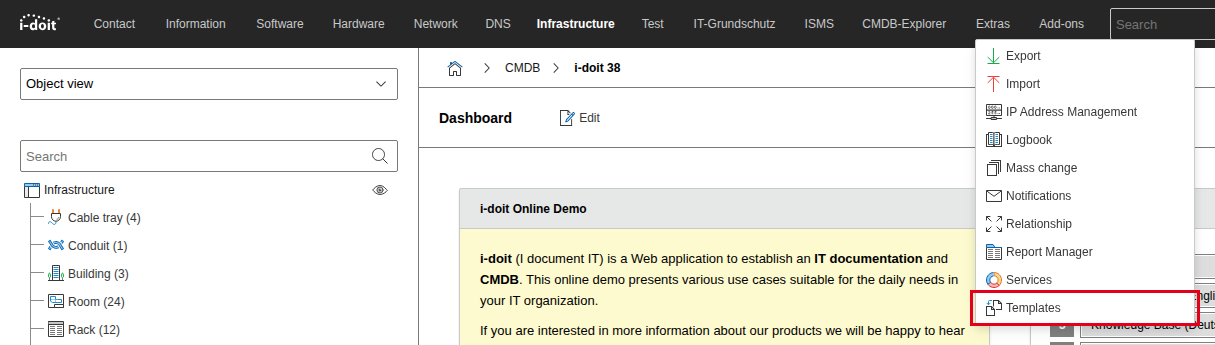
You can find the template function in i-doit under Extras → Templates. Here you can view and edit existing templates, create new templates, and generate objects from templates.
Configuration#
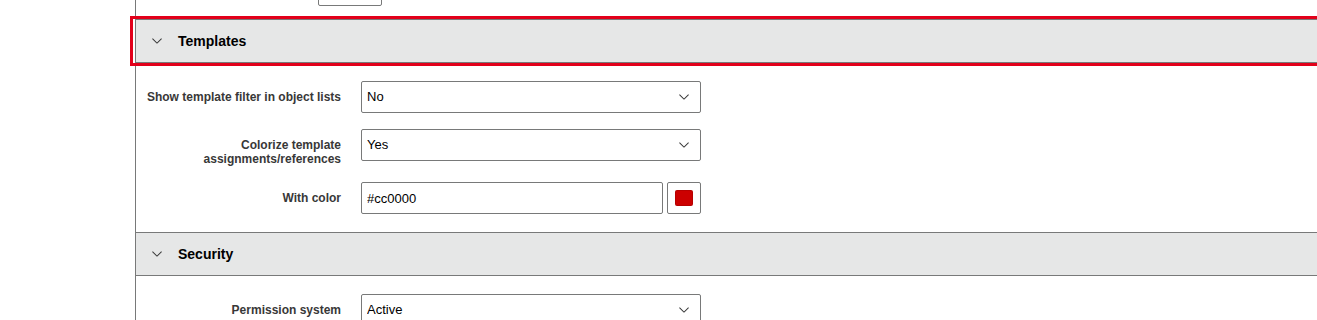
Under Administration → [Tenant Name] Administration → Settings for [Tenant Name] → Templates, template settings can be configured. By activating the template filter, it is possible to display templates in the object lists. If you set the status filter to Template within an object list, all templates belonging to this object type will be displayed.
Creating a Template#
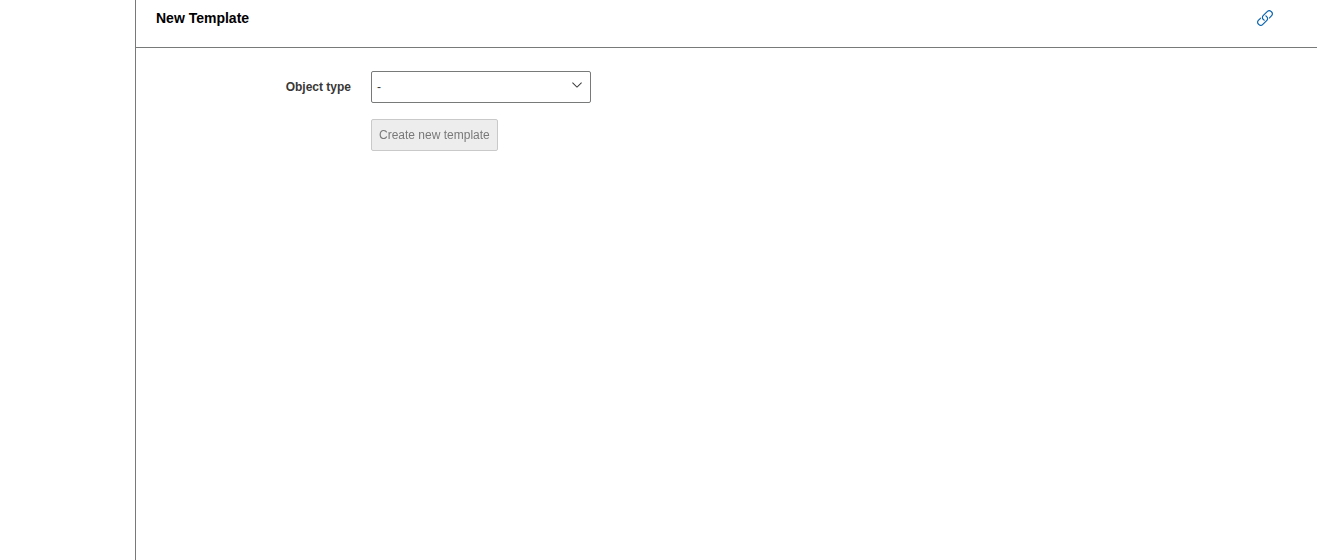
Once you have accessed the template function, you can create a template under Create new template in the tree menu on the left side. In the first step, you will be asked to specify which object type the template should belong to. Select it from the drop-down menu and confirm with the Create new template button. The subsequent configuration of a template is identical to creating a regular object. Enter all content that you want to transfer to the objects later and save your entries.
Alternatively, you can access the template creation configuration within an object list via the arrow icon next to the New button.
Viewing, Editing, and Deleting Existing Templates#
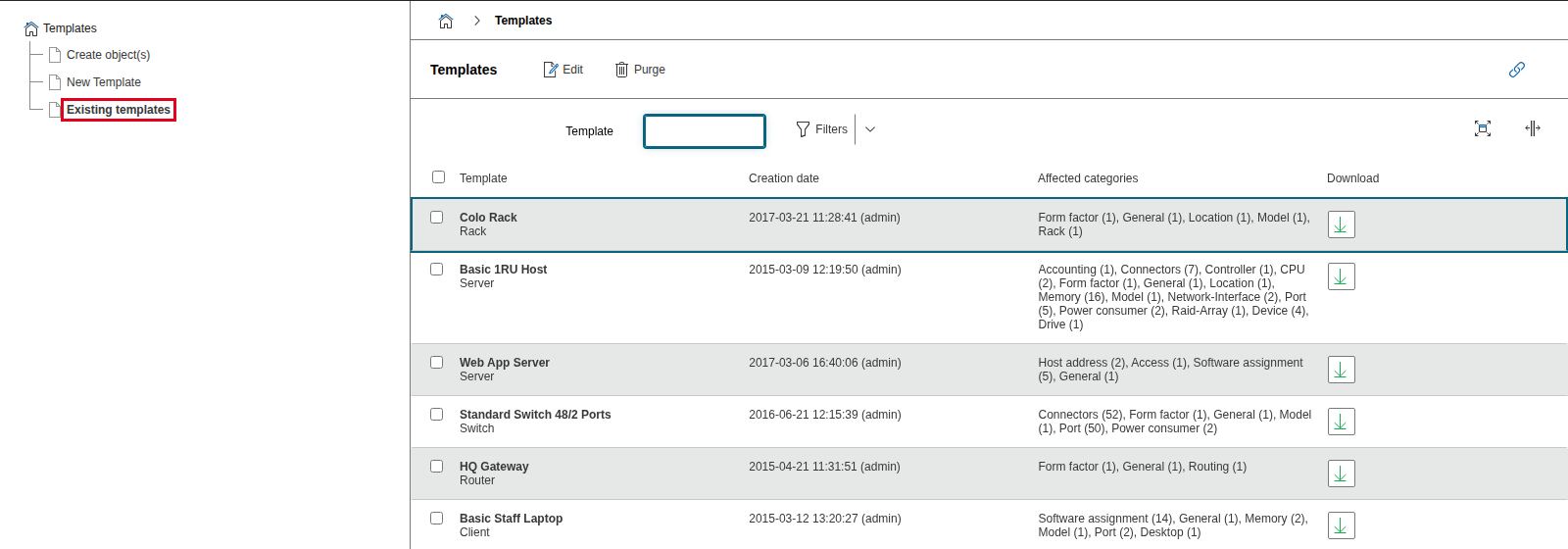
In the template function, you can view all previously created templates under Existing templates in the tree menu on the left side. To edit a template, click on it. If you check the checkbox of one or more templates, you can remove the selected templates from the system using the Purge button. Please make sure you want to delete the selected templates, as deleted templates cannot be restored. Templates can be downloaded as XML and imported via XML import.
Creating Objects from Templates#
Use Create object(s) in the tree menu on the left side in the template function to generate objects based on your templates.
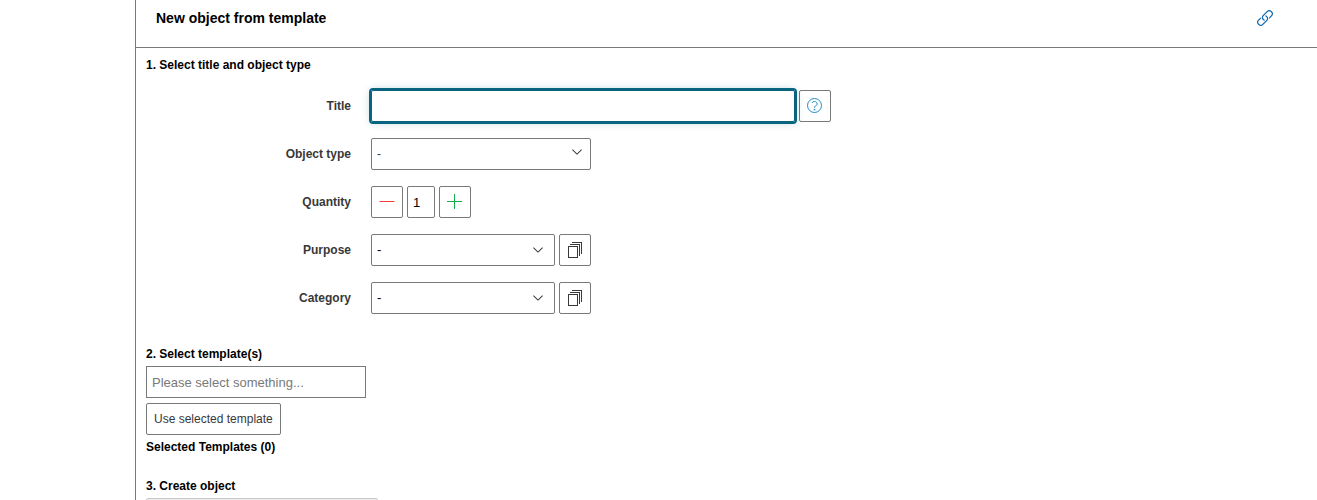
Here you will first be asked to provide basic information about your new objects. In the first step, specify the object title and object type of your objects. Since the template function allows the simultaneous creation of multiple objects, you can also specify how many (identical) objects should be created. If you decide to generate more than one object, an additional area opens that lets you choose whether to use a counter suffix. Here it is also possible to specify the leading zeros and the value at which the count should start. Additionally, the Purpose and Category attributes of the new objects can be specified in advance.
In the Select template(s) section, you can now specify which template or templates should be used for creating the objects. Select the desired templates from the drop-down menu and add them one by one using the Use selected template button. Information from multiple templates is combined in each object.
The placeholders can be displayed via the .
Accessing Template Functions from an Object List#
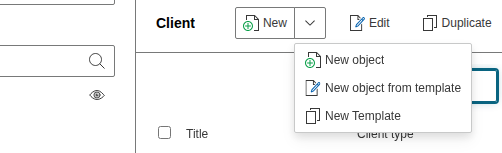
You can also access the functions for creating new templates and creating objects from templates via the object lists. Use the downward-pointing arrow next to the New button to open the context menu. This contains the corresponding items to jump directly to the desired operation.
Default Template in the Object Type Configuration#
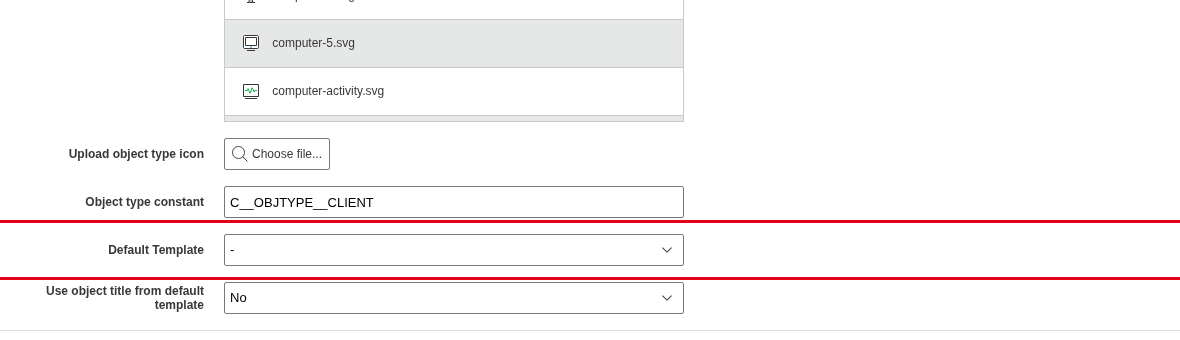
In the object type configuration, you can select a default template. Any template you have created can be used here. If you specify a default template, all newly created objects will be populated according to this template. Of course, you can adjust objects created this way at any time and change the populated values.