CMDB Explorer#
The CMDB Explorer graphically displays relationships between objects. Various dependency views can be generated. This provides a quick overview. These views can then be exported to various formats for further processing.
Accessing the CMDB Explorer#
You can access the CMDB Explorer both via the menu bar at the top and within an object via the corresponding icon above the category list.
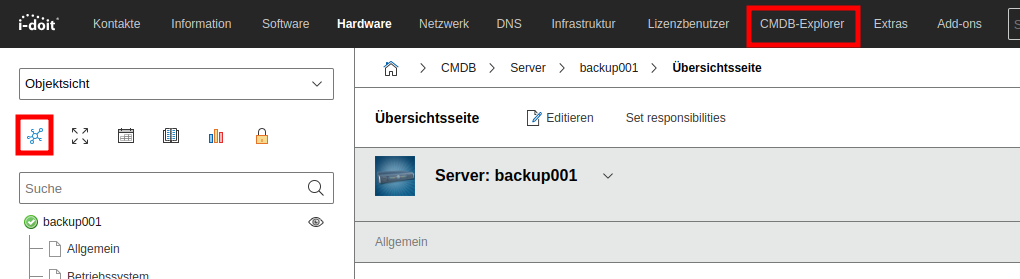
If you access the CMDB Explorer via the icon from within an object, this object is preselected as the root object. When selecting via the menu bar, the CMDB Explorer is loaded without an object selection.
Layout of the CMDB Explorer#
The CMDB Explorer is divided into three areas, each fulfilling a corresponding role:
- Content area: This area handles the graphical representation of the content in the center.
- Information area: Additional information can be found in this area, located to the left of the content area.
- Toolbar: The toolbar is used to configure the view. It is located above the content area.
Content Area#
The content area of the CMDB Explorer is located centrally. All content matching your settings in scope and presentation can be found here. The form of presentation can be defined via profiles.
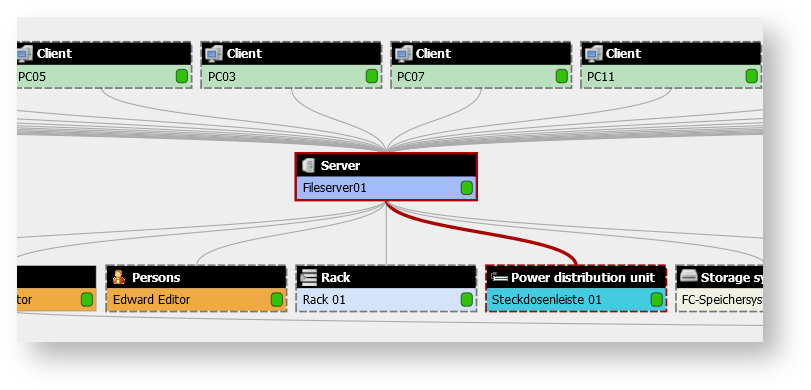
The displayed section can be moved at any time in the content area. To do this, click in the free area of the display, hold the mouse button, and move the view. To display further relationships of an object, its tile can be double-clicked.
If further relationships exist, they will now be expanded. The information area to the left of the content area contains additional information about the activated object. The object is activated by clicking its tile once. When an object is activated, the path to the root object is traced to make it clear.
Note
The direction in which individual tiles expand depends on the relationship direction. This is always directed in i-doit: Each relationship has a master and a slave object. Once a direction is established, it cannot be changed in the CMDB Explorer, i.e., tiles expanding downward can only display relationships that would also expand downward.
Information Area#
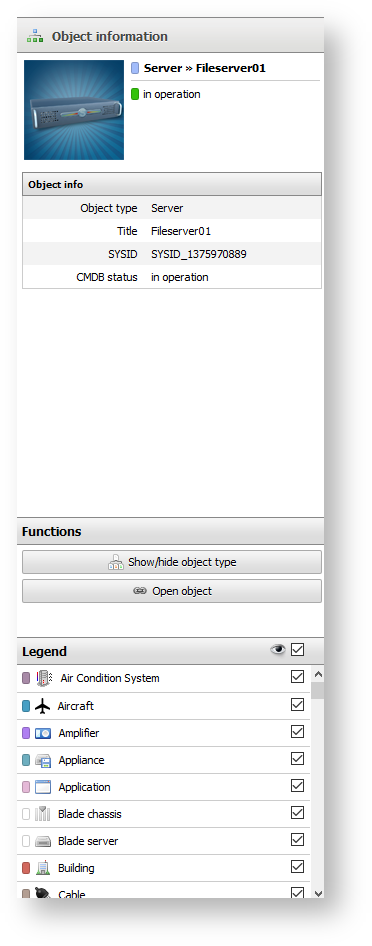
The information area is located on the left side of the CMDB Explorer and displays additional information about the selected object. Which information is displayed can be defined via the profile used for the CMDB Explorer. When an object is activated, the Show/hide object type button can be used to gray out all objects of this type for a better overview.
If a different object has been chosen as the root object, the Set as root button can also be found here. This allows centering on the currently activated object, and the relationships are built around this object. Via Open object, the object is opened in i-doit so you can view and edit its attributes. The legend displays the object colors for the individual object types. Additionally, it is possible to globally gray out all objects of a type in the CMDB Explorer.
Toolbar#
In the toolbar above the content area, the object to be displayed centrally and around which the relationships are built is selected. Additionally, it is possible to select the profile for the display. In the default state, a Micro Profile is offered alongside the default Profile, which allows the display of more information in a smaller area.

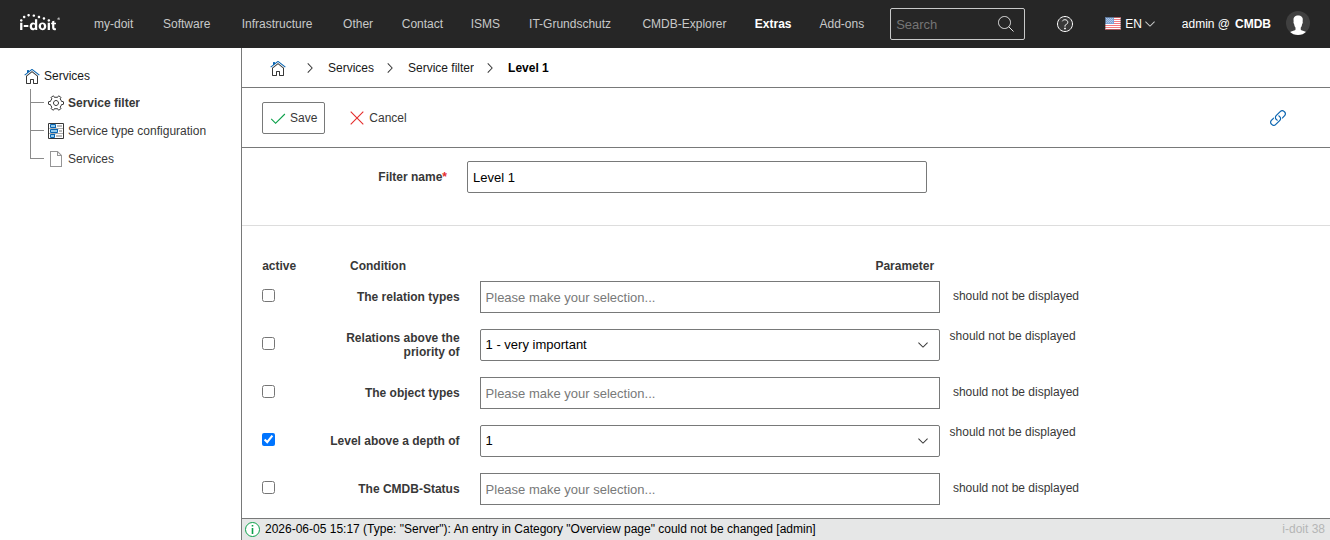
Furthermore, the display can be influenced by the Service Filter. Here, conditions can be set for which objects and relationships should be considered. The service filters can be configured under Extras → Services → Service Filter.
In addition to the relationship type, its weighting, and the displayed object types, the depth of the display and the CMDB status of the objects can be set as conditions.
Via the Change orientation button, the display direction is adjusted. Here it is possible to have the display run either from top to bottom or from left to right. For extensive visualizations, the left-to-right display is recommended. Furthermore, it is possible to select the display type.
Via the Switch display type button, you can switch from the Tree View to a Net View. In the tree view, objects may be displayed multiple times if they have relationships to other objects at different points.
In the net view, an object is displayed exactly once and all relationships are created from its tile. For more complex relationship displays, the tree view is recommended.
The zoom on the display can be adjusted via the Zoom in and Zoom out buttons. Centering with a zoom level of 100% is done via the Center and zoom to 100% button. Alternatively, the mouse wheel can be used for zooming.
The Export button enables exporting the current content of the CMDB Explorer to alternative formats that can be used externally. When using the Print button, the current view is prepared for printing. Via Full screen, the displayed area is expanded to a larger surface, providing more space for the display.