Report Manager#
Reporting is a suitable tool for condensing, preparing, and sharing data with third parties. i-doit therefore includes a Report Manager that can fully process data from the IT documentation.
Overview#
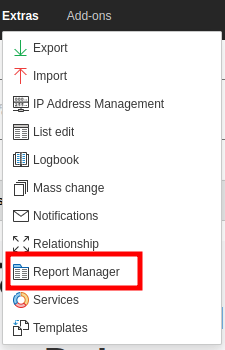
The Report Manager can be accessed via the main navigation bar under Extras → Report Manager. In the navigation tree on the left side, the items Reports, Online Repository, and Views appear, which are described below. If the Report Manager or the items in the navigation tree do not appear or appear incompletely, this is due to missing permissions.
Report Special Add-on#
With the Report Special add-on, approximately 50 pre-built reports are imported. More information about the add-on can be found in the Customer Portal.
Evaluating a Report#
The self-created reports are located under Reports. After the setup of i-doit, there are no reports in this area yet.
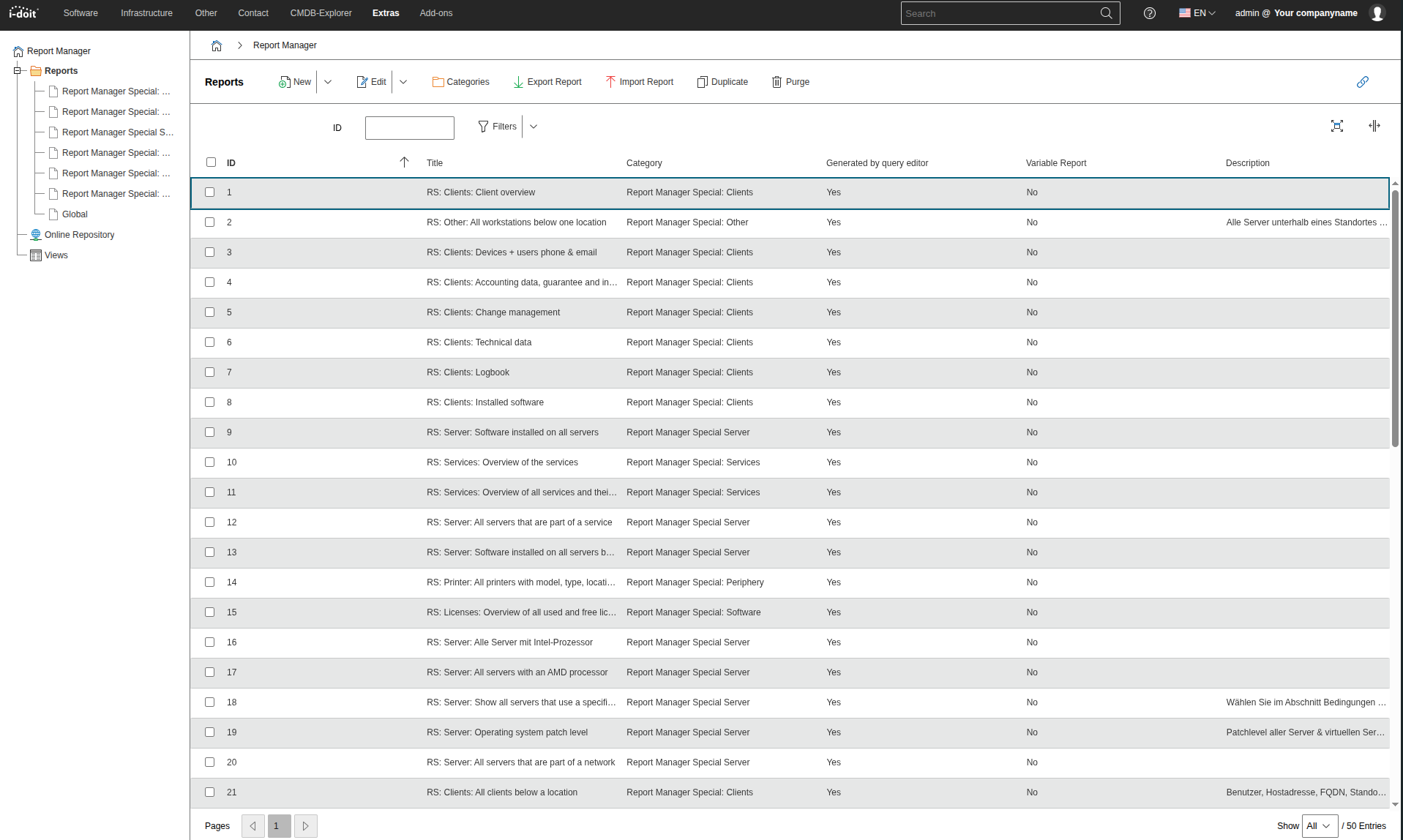
Click on a report in the list to execute it with the current data. The result list is presented in tabular form. Reports always focus on objects and their attributes -- each result row focuses on a main object, for which any attributes such as relationships to other objects may be specified. Click on a row to open the corresponding object.
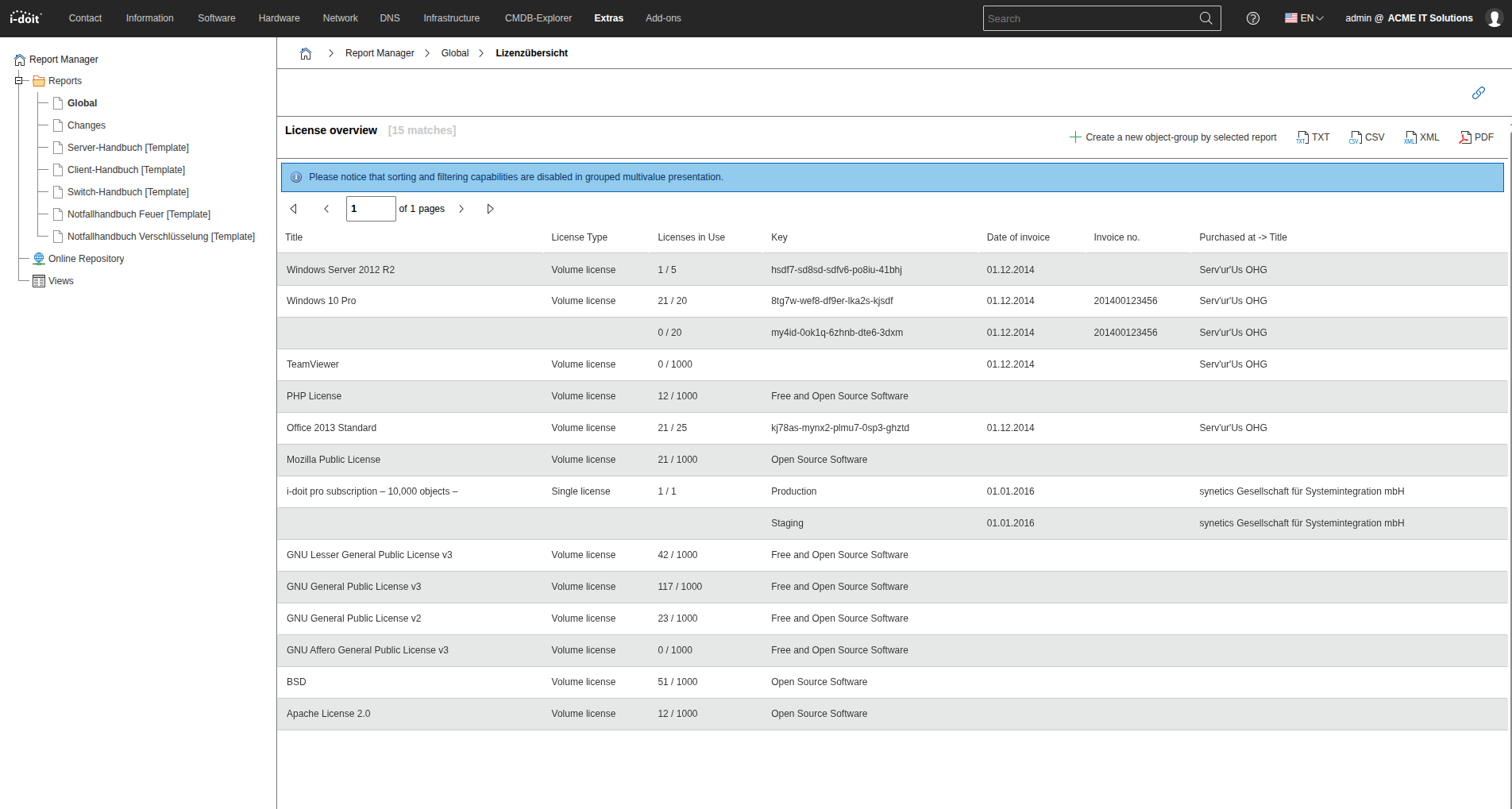
The table offers various functionalities (column sorting, filtering by a column, pagination). Furthermore, a report can be exported to various formats (plain text, CSV, XML, and PDF). For further processing with a spreadsheet program or similar, export to CSV format is recommended.
From a report, you can generate an object of type Object Group. The objects from the report are statically assigned to the category of the same name. Alternatively, you create an Object Group with dynamic assignment: Select the corresponding setting in the Type category and link a report. The object group then always contains the current result list of the report -- determined at runtime.
Categorizing Reports#
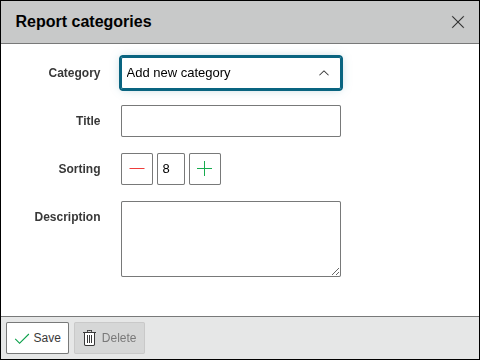
Reports can be organized into categories. By default, they are assigned to the Global category, which cannot be deleted. The advantage: You can define per category who is allowed to access it. On the Reports page, you create or edit categories via the Categories item. The optionally description field helps with orientation.
Note
If it is not possible to create and/or edit report categories, it is advisable to check the permissions and ensure that the currently logged-in user has the necessary permissions.
Creating or Editing a Report#
You can copy reports by selecting a report and clicking Duplicate. Via the Purge button, you irrevocably delete a report.

Two methods are available for creating a report, which are explained in more detail below.
Query Editor#
The Query Editor provides a graphical interface for creating or editing reports. Access it via the New button or select Query Editor from the drop-down field next to it. To edit an existing report, check the checkbox next to the report and click one of the mentioned buttons.
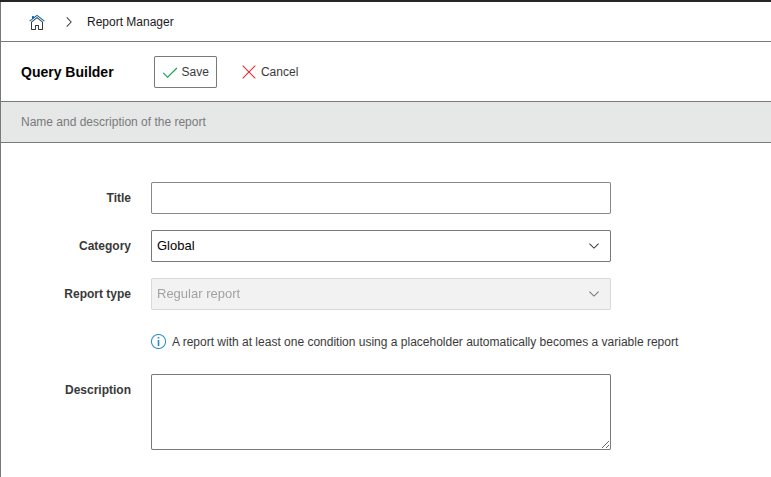
Essential are the title and the category. Additionally, it is often helpful to provide a short description. Via the Check button, the report can be tested. A popup displays a maximum of 25 results.
Advanced Options#
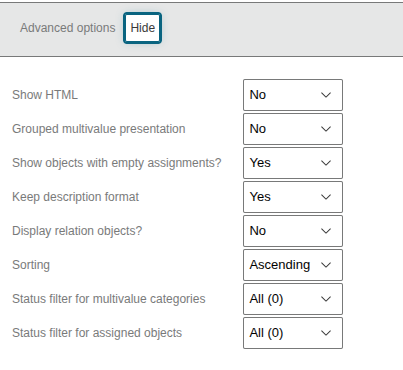
The following advanced options are available.
| Option | Description |
|---|---|
| Show HTML | If the option is set to Yes, HTML is also displayed in reports. |
| Grouped multivalue display | This option groups multi-value entries for an object beneath each other. |
| Show objects with empty links? | This option relates to sub-queries for objects that are in a relationship. If the attribute representing this relationship is empty, i.e., no object is in a relationship, the result will be empty if the option is set to No. Otherwise, the cell in the result remains empty. |
| Preserve description field format | Should the format of the description field be preserved? |
| Also output relationship objects? | Behind every relationship between two objects is a relationship object. If this option is set to Yes, the relationship object is also displayed in the result. |
| Sorting | Some selected attributes can be automatically sorted as soon as the report is executed. This option additionally allows you to set whether the sorting is ascending or descending. |
| Status filter for multi-value categories | Should archived, deleted, normal, unfinished, or all multi-value entries from categories be displayed? |
| Status filter for assigned objects | Should archived, deleted, normal, incomplete, or all objects from assignment categories be displayed? |
Output#
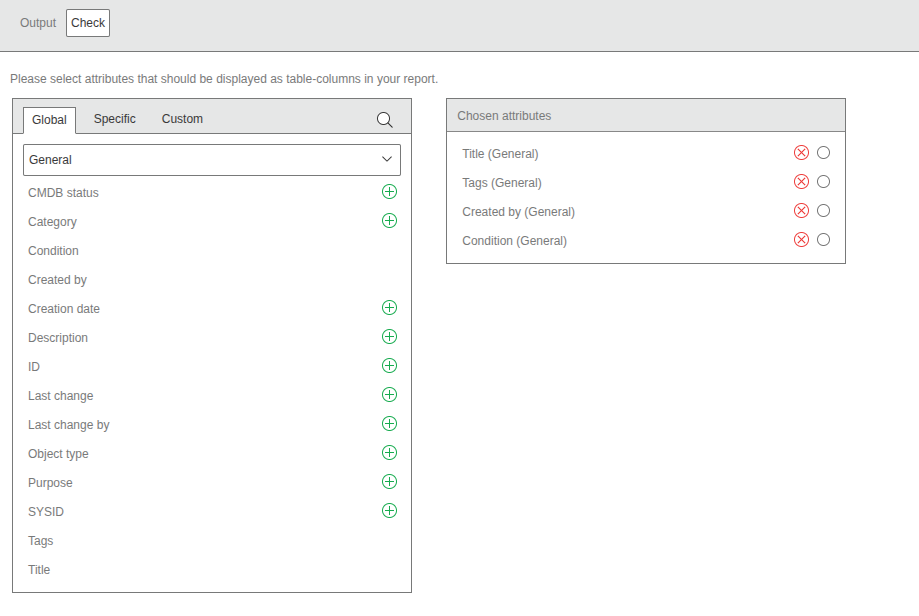
In the Output area, you define the columns of the result list. Select the desired attributes from the three category types Global, Specific, and Custom. Each attribute defines a column whose order you set via drag and drop.
Via the radio button next to an attribute, you activate automatic sorting. If no attribute is selected, sorting is by object ID.
If you select an object reference as an attribute, you can add further attributes of the linked object via the displayed magnifying glass. These sub-queries can be nested arbitrarily (recursively).
Conditions#
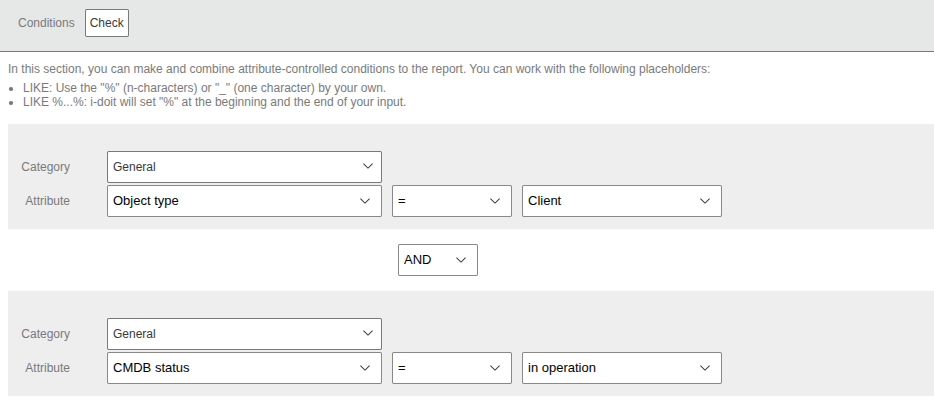
Under Conditions, you specify the desired filter criteria. Select the attribute to be checked with the matching category and construct the logical query: What value must the attribute match (or not)? Typical operators such as =, !=, <, > are available depending on the field type.
Via the + button, you add more conditions and nest them with and or or. Via the - button, you remove conditions. Empty condition blocks are automatically removed.
To set conditions on attributes of linked objects, select the attribute with the object relationship and set the condition to Linked attribute. In a sub-condition block, you then specify the further conditions.
Updating Reports After an Update#
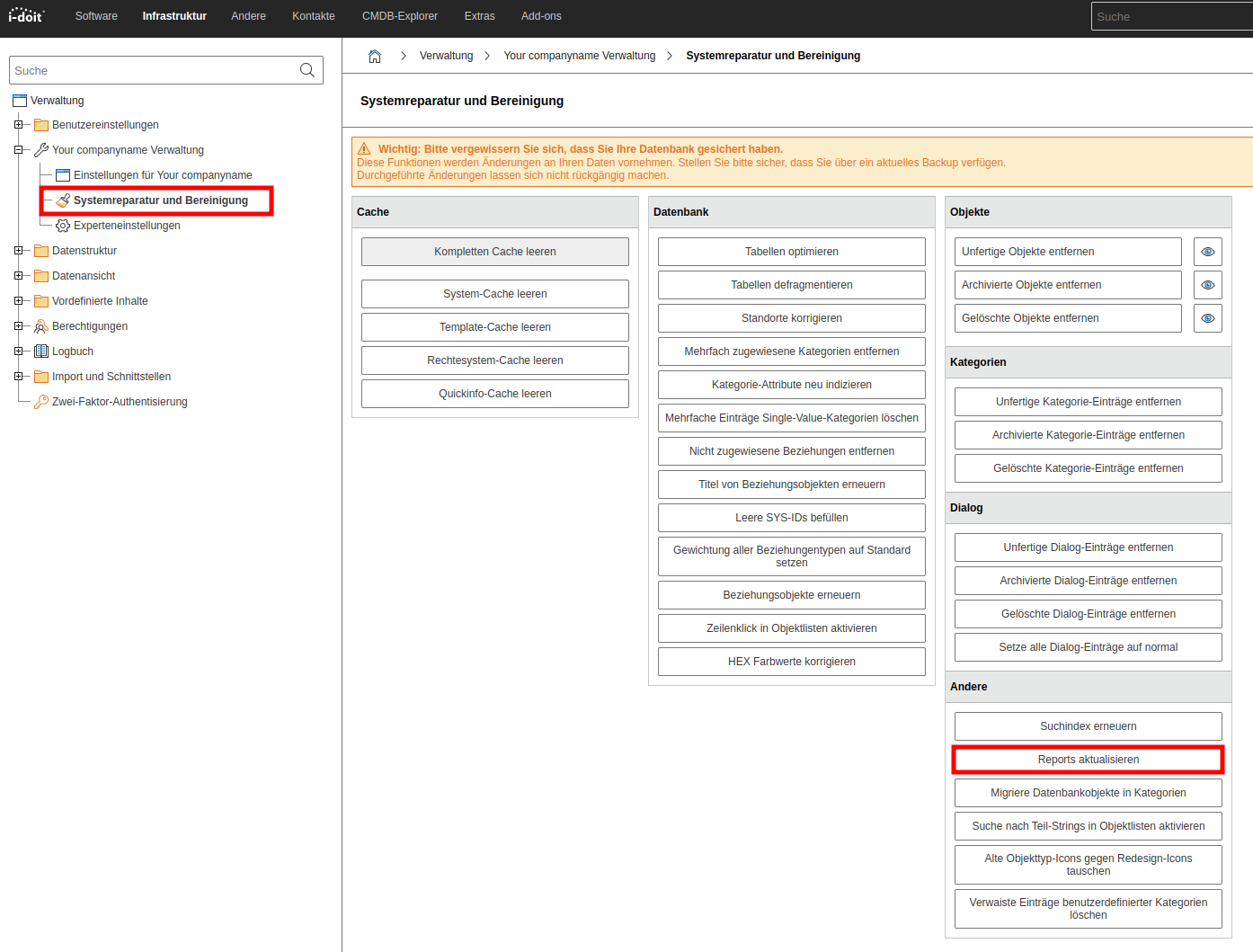
Through i-doit updates, the Query Editor may also change, so that queries are constructed differently than before. To ensure that reports always use the current logic, it is necessary to update these queries. This is possible either via the Administration or via the i-doit console utility.
SQL Editor#
Every report can be created or edited via the SQL Editor -- including those created with the Query Editor. Click on the drop-down field next to New on the Reports overview page, or select an existing report, click the drop-down field next to Edit, and choose SQL Editor.
Switching between Query and SQL Editor
If a report is created or edited with the SQL Editor, subsequent editing with the Query Editor is no longer possible. Background: The SQL Editor provides the full spectrum of SQL. Since the Query Editor is limited to a subset of SQL (which is sufficient in most cases), the created query could be destroyed by this difference.
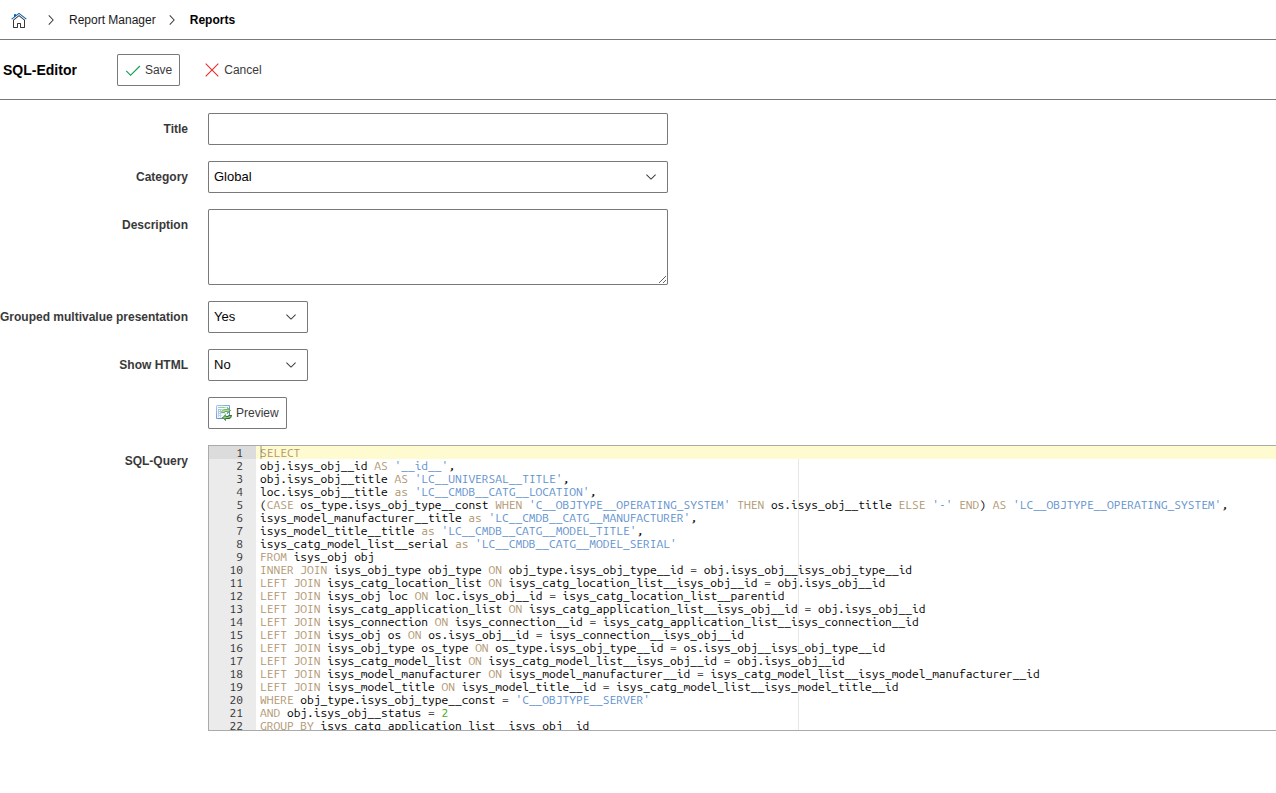
In the SQL Query form field, you write the query in SQL. Knowledge of the database structure of i-doit is required here. Important: You must always query objects and select the object ID as the first (invisible) column:
1 | |
Column names can be specified multilingually and are automatically translated by i-doit during the real-time query:
1 | |
Designing complex reports
To design complex reports that leverage many SQL features, the following approach is recommended:
- Create the report with the Query Editor (as far as possible)
- Copy the report
- Edit the copy with the SQL Editor
Advantages are that you do not necessarily need to know the database structure of i-doit and that you can still edit the prepared report with the Query Editor.
Exporting/Importing Reports#
You can export and import reports. Select the desired report via the checkbox and click the export button. The exported file can be imported into another instance or another tenant. Reports created with the Query Editor remain editable via the Query Editor even after import.
Note when transferring: Conditions and outputs that refer to individual content (e.g., an object ID or a custom category) must be edited afterward if they are not identical in the target instance.
Online Repository#
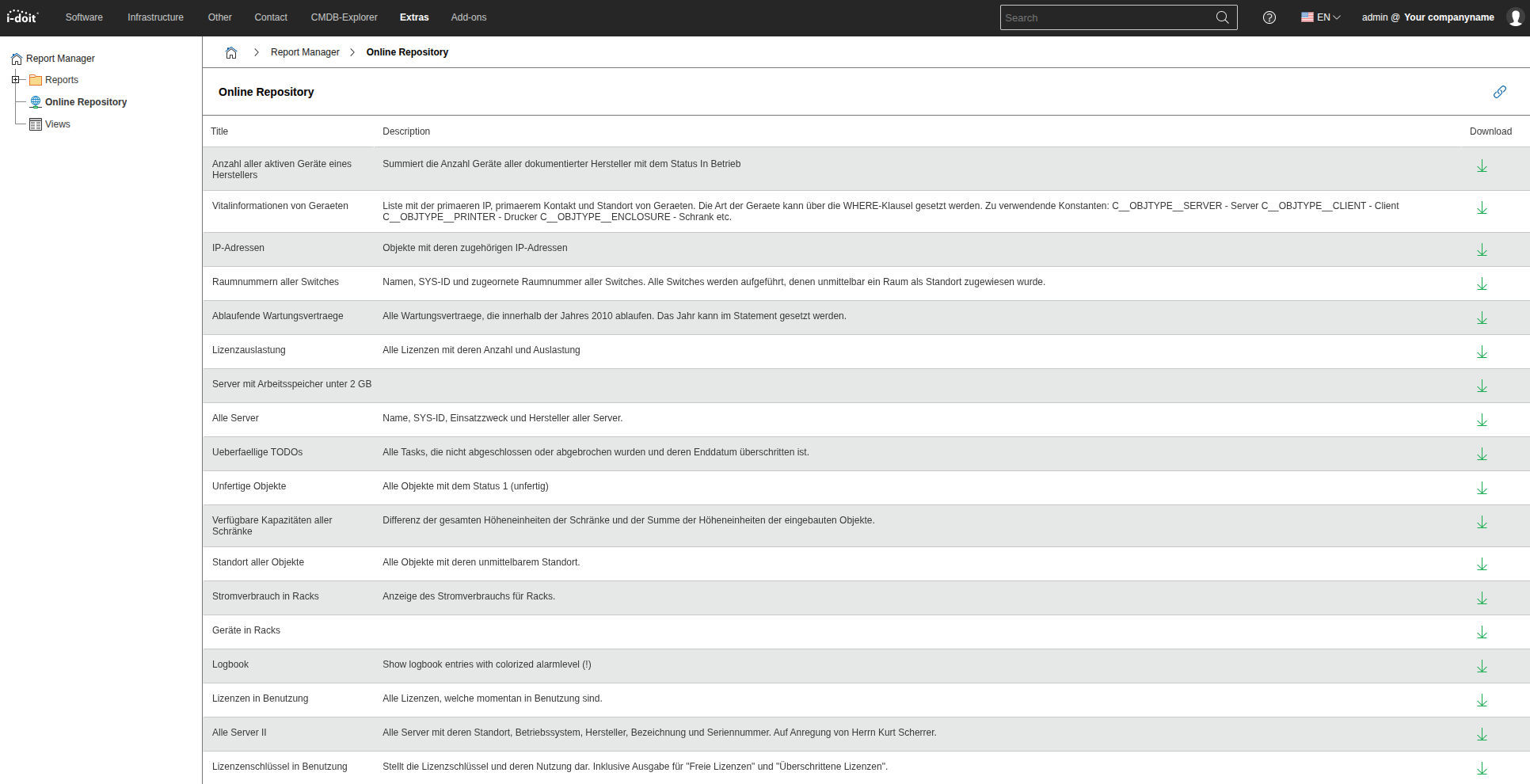
Pre-built reports are available for download on the internet. Via the Online Repository item, you can execute them directly or save them locally. An existing internet connection is required.
Report Views#
Report Views offer additional functions and views beyond the reports described above. New ones cannot be created, and existing ones cannot be edited or deleted.
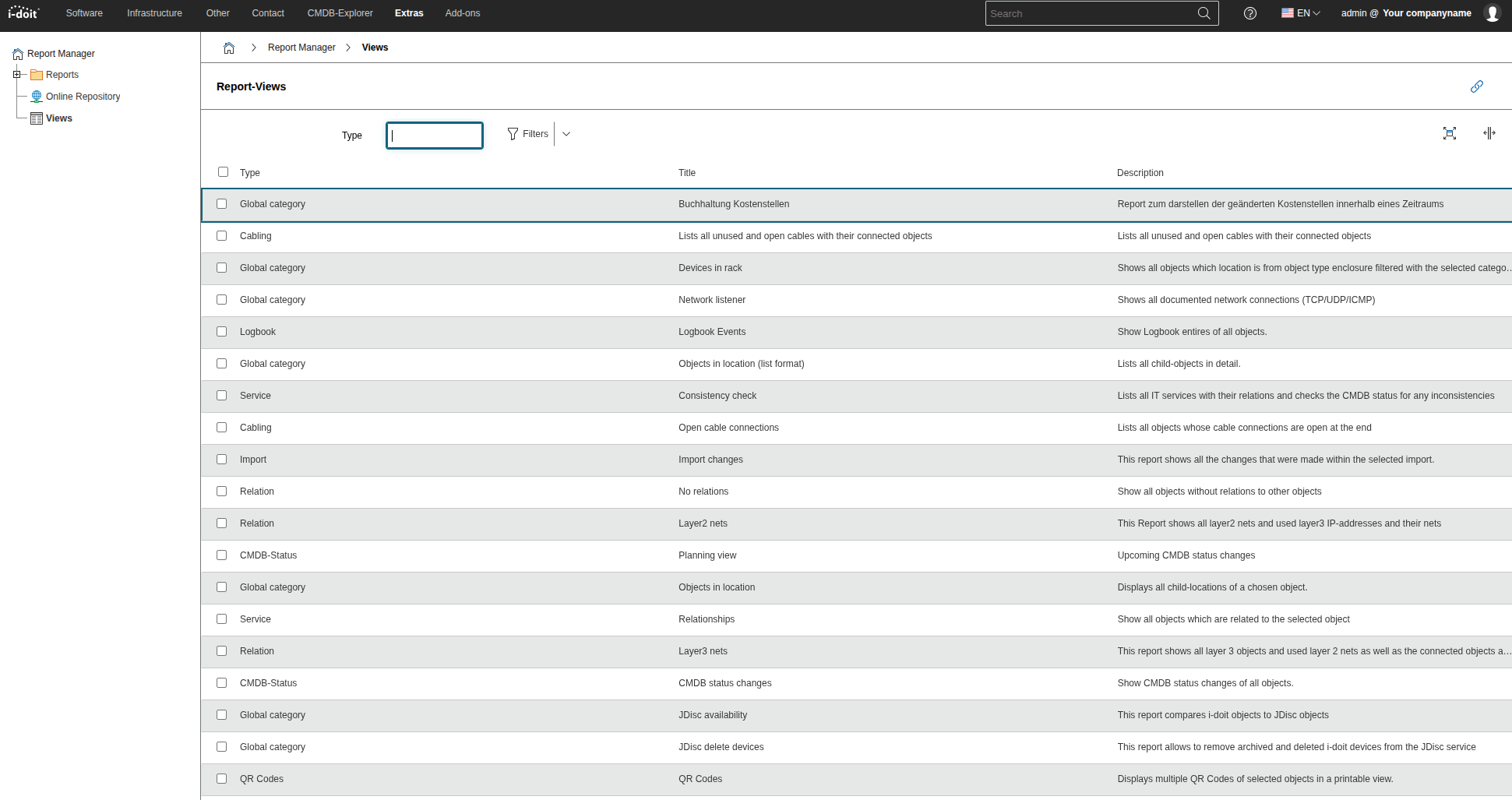
Selection of useful Report Views:
- QR Codes: Preparing and printing multiple labels simultaneously that can contain a QR code as well as additional information and a logo.
- Devices at a location (list format)
- Network connections
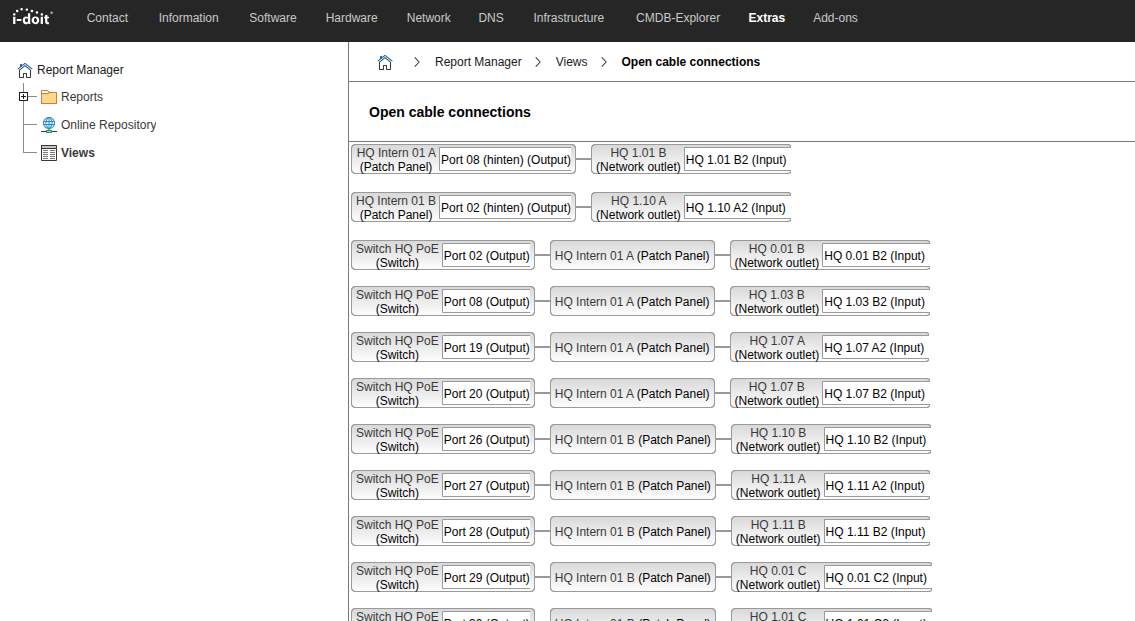
- Open cable connections
Automated Report Export#
Existing reports can be automatically exported as files without manual user intervention. This is done via the i-doit console utility using report-export.
1 2 3 4 5 6 7 8 9 10 11 12 13 14 15 16 17 18 19 20 21 22 23 24 | |
Automation can be accomplished, for example, through a cron job.
Report-based notification
i-doit can send appropriate emails for positive reports, i.e., reports with results.
Assigning Permissions#
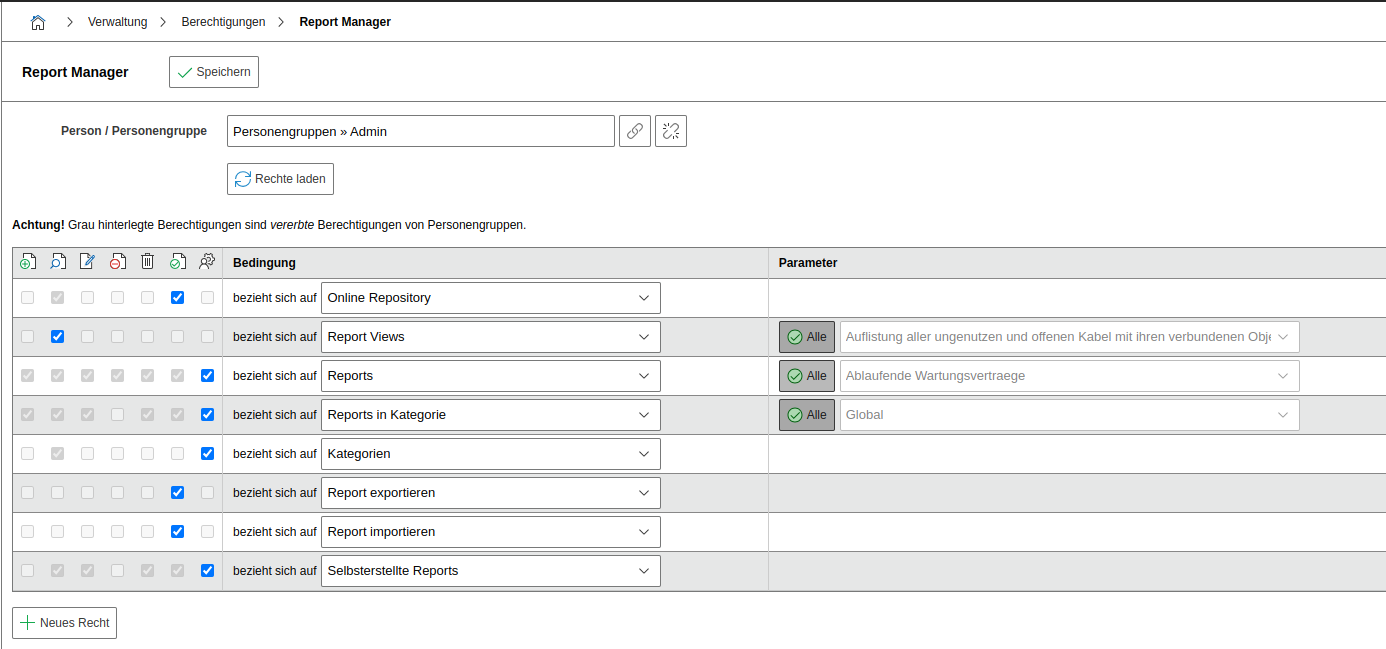
You can assign permissions for the Report Manager to users and user groups (object types Persons and Person Groups). The configuration can be found under Administration > Permissions > Report Manager. The following permissions are available:
- Online Repository
- Report Views
- Reports
- Reports in categories
- Categories
- Export report
- Import report
- Self-created reports
[ ](../assets/images/en/evaluation/report-manager/14-rm.png
Variable Reports#
With Variable Reports, you can display data that is object-specific, rather than static as with normal reports.