Checkmk#

Check_MK is a network monitoring software that you can configure from within i-doit.
The add-on exports WATO configuration files to Check_MK. WATO manages changes to the monitoring configuration and validates them. The exported configurations contain IP addresses or DNS names of hosts and clusters, assigned host tags, and linked contacts. Additional monitoring-specific configurations remain in Check_MK.
The advantage: You avoid duplicate data maintenance. Host tags that control monitoring in Check_MK on a rule basis are automatically generated from CMDB information such as the location of an object.
Attention!
The interface officially supports only Check_MK up to version 1.4. For all newer versions, the Check_MK 2 add-on is intended. It is therefore unclear which functions/areas of the interface work correctly with Check_MK versions > 1.4.
Basic configuration#
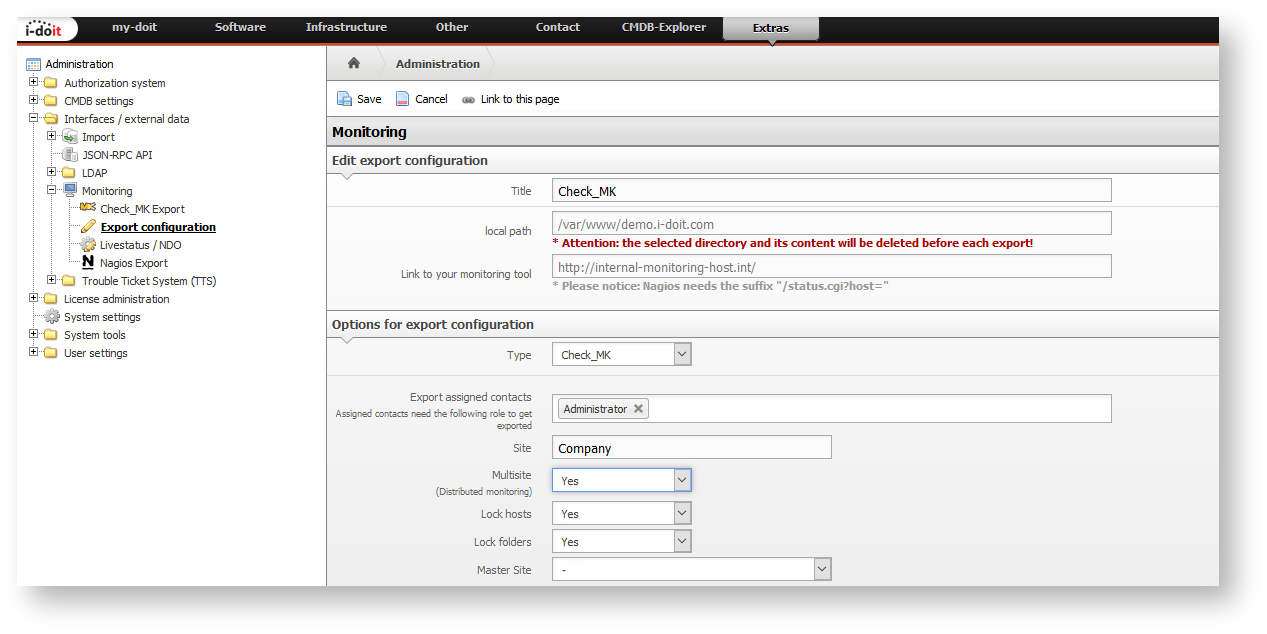
Set up the configuration under Administration → Interfaces → Monitoring → Export configuration:
- Define the local path -- an absolute or relative path in the file system where the generated configuration is stored.
- Specify the link to the monitoring tool so that i-doit can generate links to the monitoring instance.
- Select Check_MK as the type -- additional parameters appear.
The most important parameters:
- Export assigned contacts: Stores the contacts assigned to the objects including object title in the configuration.
- Site: Defines the site to which the configuration is forwarded. Set Multisite (Distributed Monitoring) to "Yes" for this.
- Lock hosts/folders: Prevents the exported configuration from being edited in Check_MK -- so your settings are not overwritten during the next export.
- Master Site: Select the site here that has been added across multiple export configurations. With only one configuration, leave this field empty.
Categories#
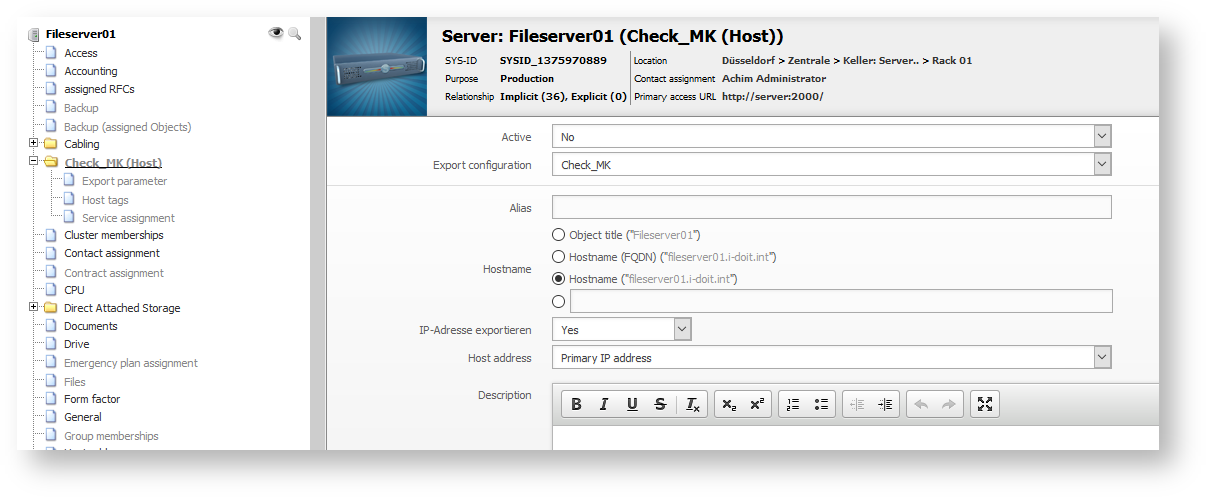
Assign the category folder Check_MK (Host) to the desired object types via Edit data structure.
In the Check_MK (Host) category, you select an export configuration and define the hostname or host address. Optionally, you can prevent the export of the IP address -- e.g., when it is assigned via DHCP and changes.
Host tags#
Via the Host tags category, these are assigned or displayed. A distinction is made between:
-
Host tags: simple manual assignment of tags (therefore static)
-
CMDB tags: tags that are derived from a CMDB attribute
-
Dynamic tags: host tags that are generated by rules
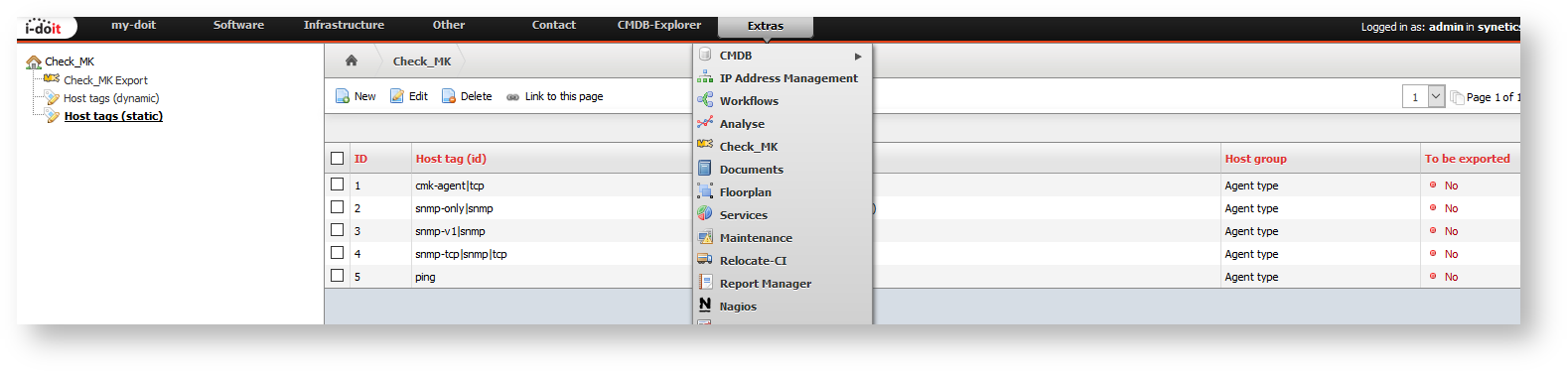
All types of host tags are configured under Extras → Check_MK.
The static host tags are maintained manually. The default tags from Check_MK are delivered preconfigured.
The CMDB tags access content from the CMDB. In the configuration, you only see object types that have the Check_MK category folder assigned. You can select individual attributes and set up a global definition that applies to all object types without specific configuration. Via Export generic location tag, you add the object title of the location as a tag to the host tags.
In the following example, the Operating system attribute from the CMDB is converted into a host tag.
The server in the example has Debian 7.1 assigned as its operating system. This value is adopted as the corresponding host tag when the configuration is exported.
The dynamic tags work on a rule basis. In the following example, the location of an object is evaluated: If a server is located below the location "Muenchen", it automatically receives the host tag "WAN" during export.
Host tags category#
In the Host tags category of an object, the dynamic host tags are displayed and the manual, static host tags are assigned.
Service assignment category#
This category is only usable when the Analysis module is installed.
Via the Service assignment, you link installed software with service checks that are read via Livestatus. This allows the Analysis module to determine which IT services are directly or indirectly affected based on monitoring outages.
Configuration export#
You start the export manually under Extras → Check_MK → Check_MK Export.
This generates .mk files that are stored in the configured directory. For easy transfer to the OMD site, the data is additionally packed as .zip and as a tarball.
The export structure determines how the objects are organized in Check_MK: You can choose whether locations or object types are used as the folder structure.
Transfer script#
In the i-doit installation directory, you will find the shell script checkmk_transfer.sh. This script automates the entire transfer:
- It controls the i-doit Console.
- It establishes an SSH connection to the Check_MK instance.
- It transfers the data to the OMD site and extracts it.
- It signals WATO that changes are available.
Prerequisite: Public key authentication between the i-doit instance and the Check_MK OMD site. Detailed instructions can be found in the installation directory under docs/checkmk/README or README.german.
Releases#
| Version | Date | Changelog |
|---|---|---|
| 1.1.1 | 09.09.2025 | [Task] PHP 8.4 compatibility |
| 1.1 | 05.09.2022 | [Task] PHP 8.0 Compatibility [Task] Design Compatibility |
| 1.0.2 | [Improvement] Compatibility with i-doit 1.16 | |
| 1.0.1 | 14.10.2019 | [Bug] List editing of Check_MK categories [Bug] Create new category entries in the list editing category "Export parameter (subcategory of Check_MK (Host))" [Bug] Add more dynamic CMDB-tags [Bug] Export of dynamic host tags with special characters |
| 1.0 | 17.12.2018 | [Improvement] Add-on is installable[Improvement] Add-on is uninstallable [Improvement] Add-on is activatable [Improvement] Add-on is deactivatable [Change] Add-onize Check_MK |