AI functions#
From version 1.12 the Documents add-on can generate document templates with AI. Chapters that were created or changed with AI are marked, and exported documents show a notice on the first page.
Configuring the AI functions#
The AI functions are configured per tenant in the i-doit Administration under Add-ons > Documents. The entry is visible to users who have the right Configuration of the Documents add-on (see Preparation).
| Field | Description |
|---|---|
| AI functions | Active enables the AI functions, Inactive disables them. |
| AI API key | The API key used to authenticate against the AI service. |
| Timeout | Maximum waiting time for an AI request in seconds. The default value is 300 seconds, the minimum is 30 seconds. |
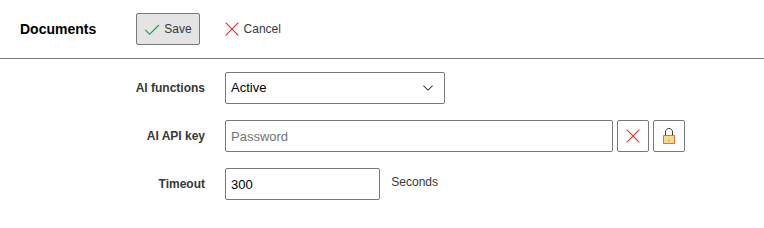
If the generation of a template takes longer than the configured timeout, the request is aborted. In this case increase the value of Timeout.
Creating a document template with AI#
If the AI functions are active, the "New" button in the template overview opens the dialog Create a new document template with two options:
- Start from scratch: Create and edit the template manually, as described under Document Templates.
- Create with AI: Describe what you need and generate a ready-to-use template.
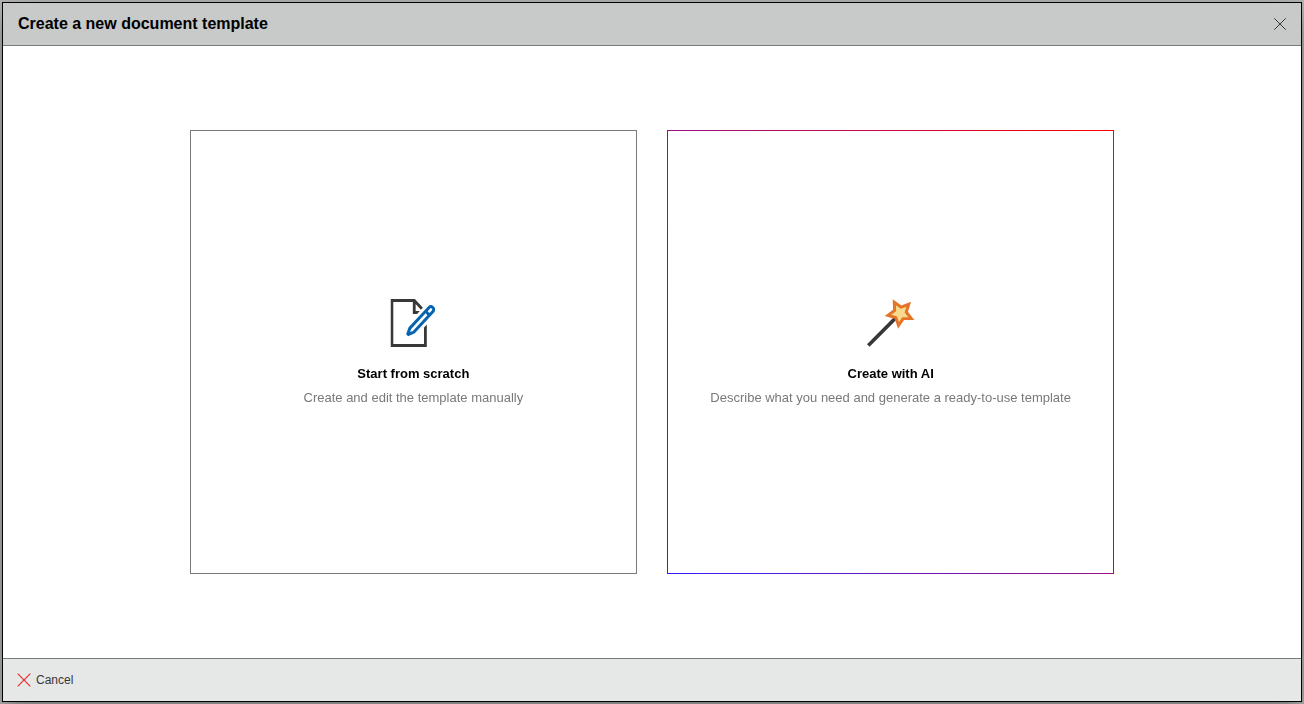
If the AI functions are inactive, the "New" button opens the template editor directly as before.
Describing the topic#
After selecting Create with AI fill in the following fields:
| Field | Description |
|---|---|
| Template category | Category in which the new template is saved. |
| Topic | Short keyword for the template, for example "Handover protocol". Up to 200 characters. |
| Description | Specific details for the AI, for example purpose, audience and scope of the document. Up to 2000 characters. |
| Document language | Language in which the AI writes the template, German or English. |
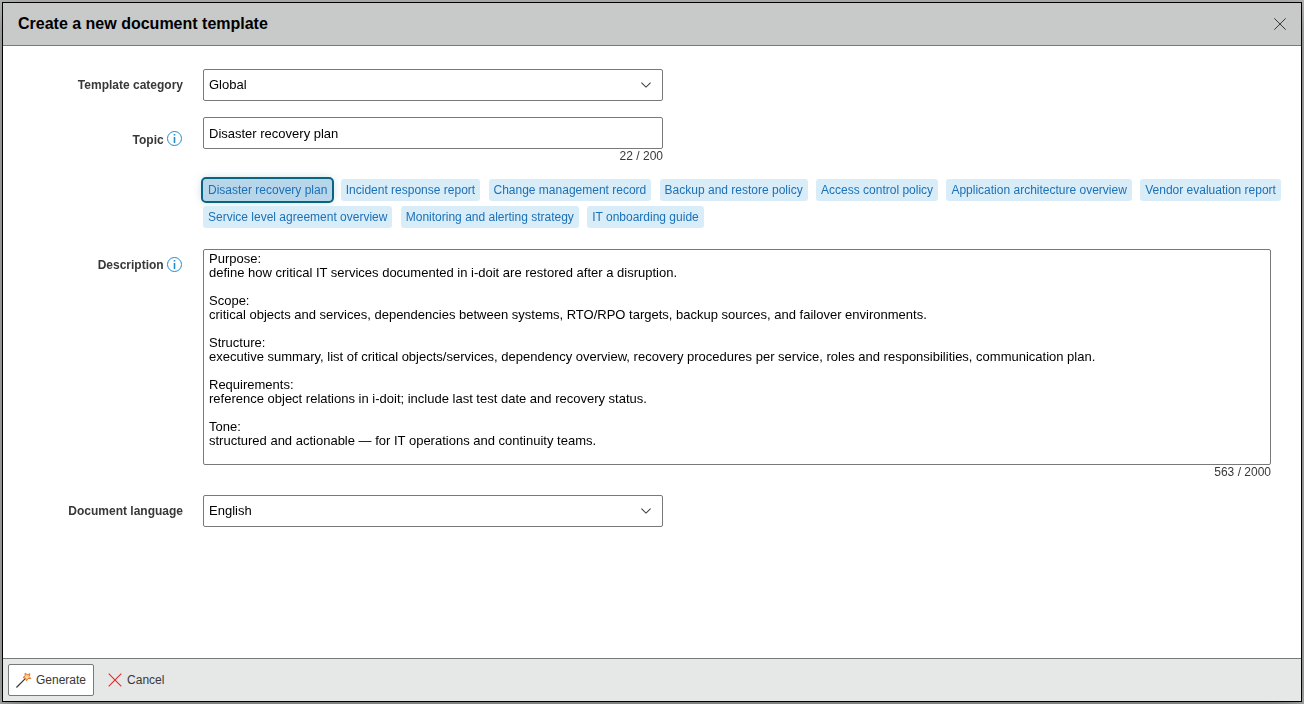
Topic and Description are required. Below the topic there are suggestions such as "Disaster recovery plan" or "IT onboarding guide". A click on a suggestion fills in Topic and Description, which you can then adapt.
Click Generate to send the request. The generation may take a while.
Reviewing the draft#
When the AI has answered, the dialog shows Review structure before creating. On the left you see the Document structure with all generated chapters and subchapters. Click a chapter to view its title and content. Nothing has been saved at this point.
Applying the draft#
Click Apply and start editing to create the template. i-doit saves the template with all chapters and opens it in the template editor. There you edit, add or delete chapters as usual (see Creating Chapters in the Document).
The template additionally receives a default cover page, header and footer. Top level chapters start on a new page.
Check the generated content
The AI writes the chapter texts and inserts placeholders for variable data such as object names or IP addresses. The actual values are filled in when you create a document for an object. Check the texts and placeholders of every chapter before you use the template.
Marking of AI content#
i-doit records for every chapter whether it was created manually or with AI:
| Marking | Meaning |
|---|---|
| AI generated | The chapter was created completely by AI and has not been changed since. |
| AI assisted | The chapter was created by AI and edited afterwards. |
Chapters created via Create with AI are marked as AI generated. As soon as you edit such a chapter in the editor, the marking changes to AI assisted. Chapters created manually carry no marking.
The marking is visible in these places:
- In the chapter tree of a template, an AI icon next to the chapter. The tooltip shows AI generated or AI assisted.
- In the template overview and in the document overview, in the column AI.
- In a document, in the row AI, and in the revisions of the document, in the column AI.
The marking of a document results from its chapters:
- AI generated: All chapters are marked as AI generated.
- AI assisted: At least one chapter is marked as AI generated or AI assisted.
- No marking: No chapter was created with AI.
AI notice in the export#
If a document contains AI content, the export contains a notice:
- PDF: An AI icon at the top of the first page, that is the cover page if the template has one. The PDF metadata (keywords) contain an AI notice as well.
- HTML: An AI icon at the top of the page and the meta tag
ai-disclosurewith the valueai-generatedorai-assisted. Documents without AI content get the valuenone.
The alternative text of the icon is "This document was generated completely by AI." for documents marked as AI generated and "This document contains text written by an AI." for documents marked as AI assisted.