Document Templates#
Templates Overview#
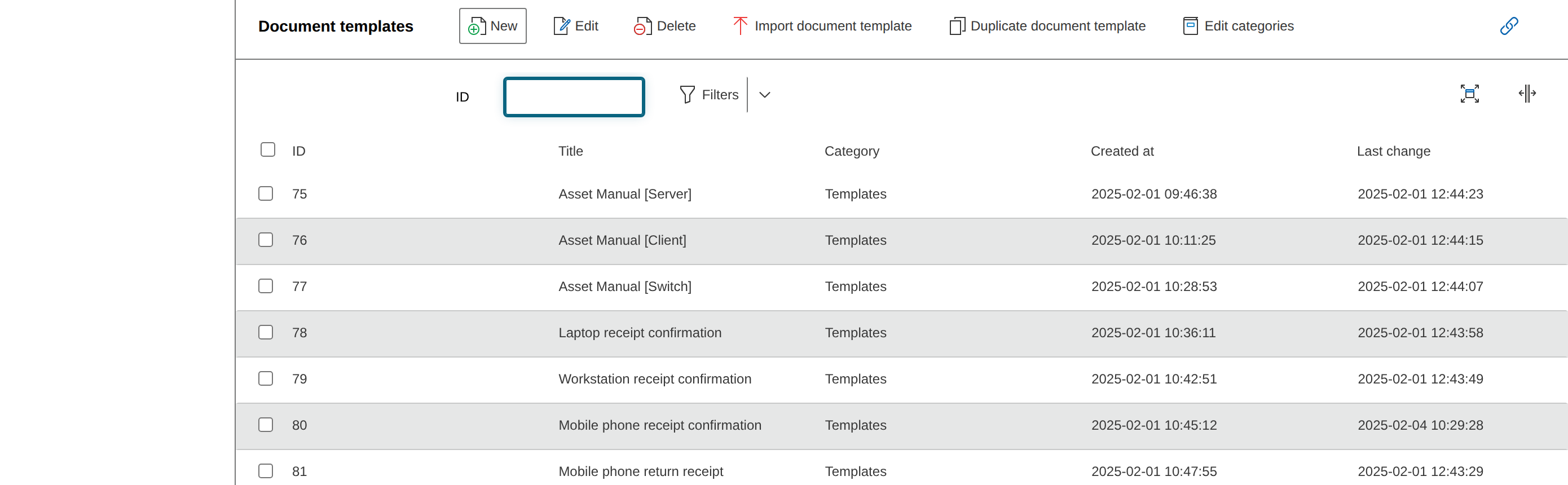
In the document templates overview, you manage existing templates. You can create, edit, delete, and import templates from files.
Via the "Edit categories" button, you access the Dialog Admin, where you create document categories to group documents and templates by topic.
For example, you can organize documents by type (protocols, manuals, ...), department, language, or custom criteria.
Creating a New Document Template#
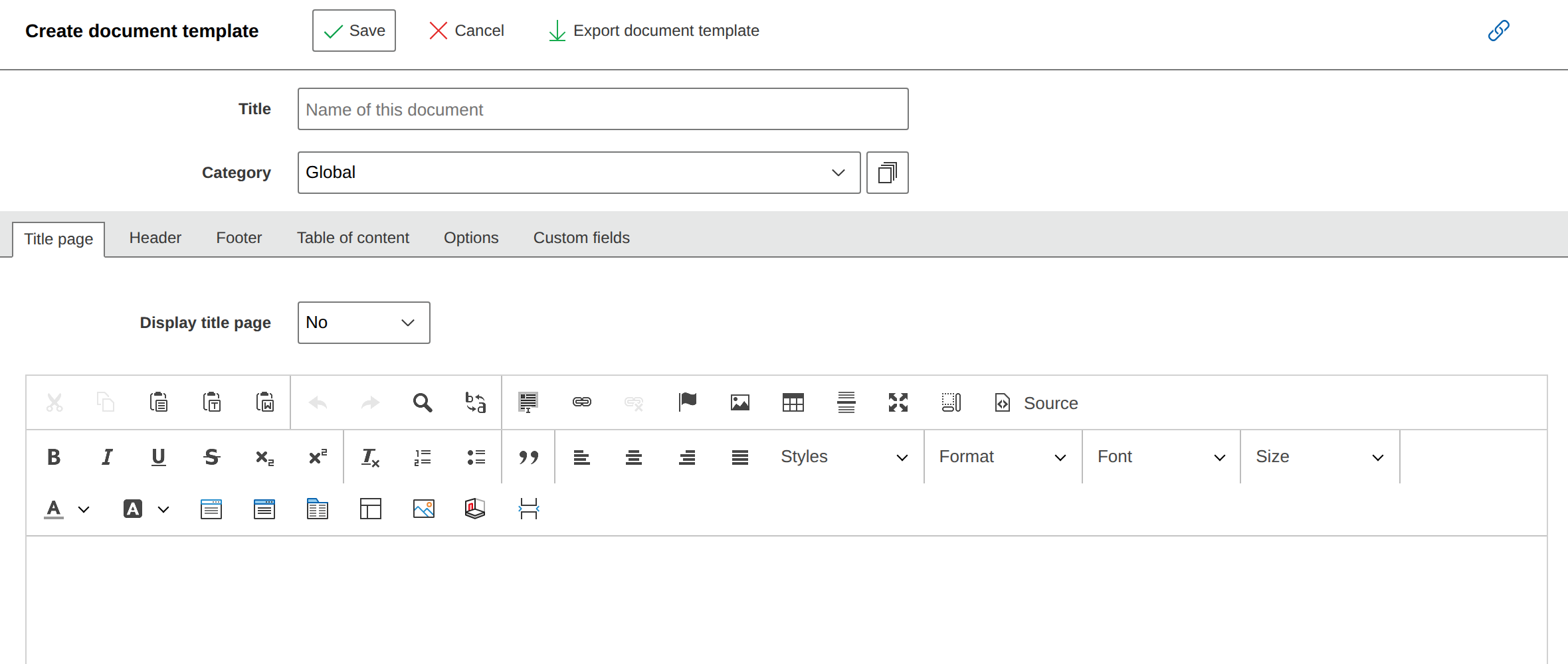
Via the "New" button, you create a new template. The add-on takes you to the next input form. Initially, you edit general and chapter-independent content.
| Option | Description |
|---|---|
| Title | Sets the name of the template by which you can find it in the system. |
| Category | Assigns the template to a document category. Only categories that you have created beforehand are available. You can change the category at any time afterward. |
| Cover Page | You design the cover page according to your own specifications. It appears as the first page of the finished document. Via the "Cover Page" tab, you activate or deactivate it. |
| Header | The header appears at the top of each page. Via the "Header" tab, you activate or deactivate it. |
| Footer | The footer appears at the bottom of each page. Here you can also add additional content, similar to the header. Via the "Footer" tab, you activate or deactivate it. |
| Table of Contents | Via the "Table of Contents" tab, you activate or deactivate the table of contents. |
| Options | Here you specify which pages are used for page numbering and from which page number counting begins. You also define the heading format. In the lower area, you configure additional settings for the PDF documents, including margins and page orientation. If needed, you can upload custom fonts, use custom CSS, or set background images for the cover page, table of contents, or other pages. |
| Custom Fields | Under "Custom Fields," you define your own fields that you later include in the document. Various field types are available. Via "Add new field," you add the required fields. To use the fields in the document, you must first create the document once. After that, all fields are available in the editing view. For the data to appear in the PDF/HTML, you create a new revision. When field data is updated, a new revision is also necessary. |
Creating Chapters in the Document#
After you have made the basic settings, save the template. Then open it again from the overview of the corresponding document category. From now on, you add new chapters via the "New Chapter" button and design the document content.
You edit existing chapters via the pencil icon that appears on mouseover. At the same time, the green plus icon is displayed, which lets you create a sub-chapter. This is one level deeper in the chapter hierarchy. Via the X icon, you delete a chapter.
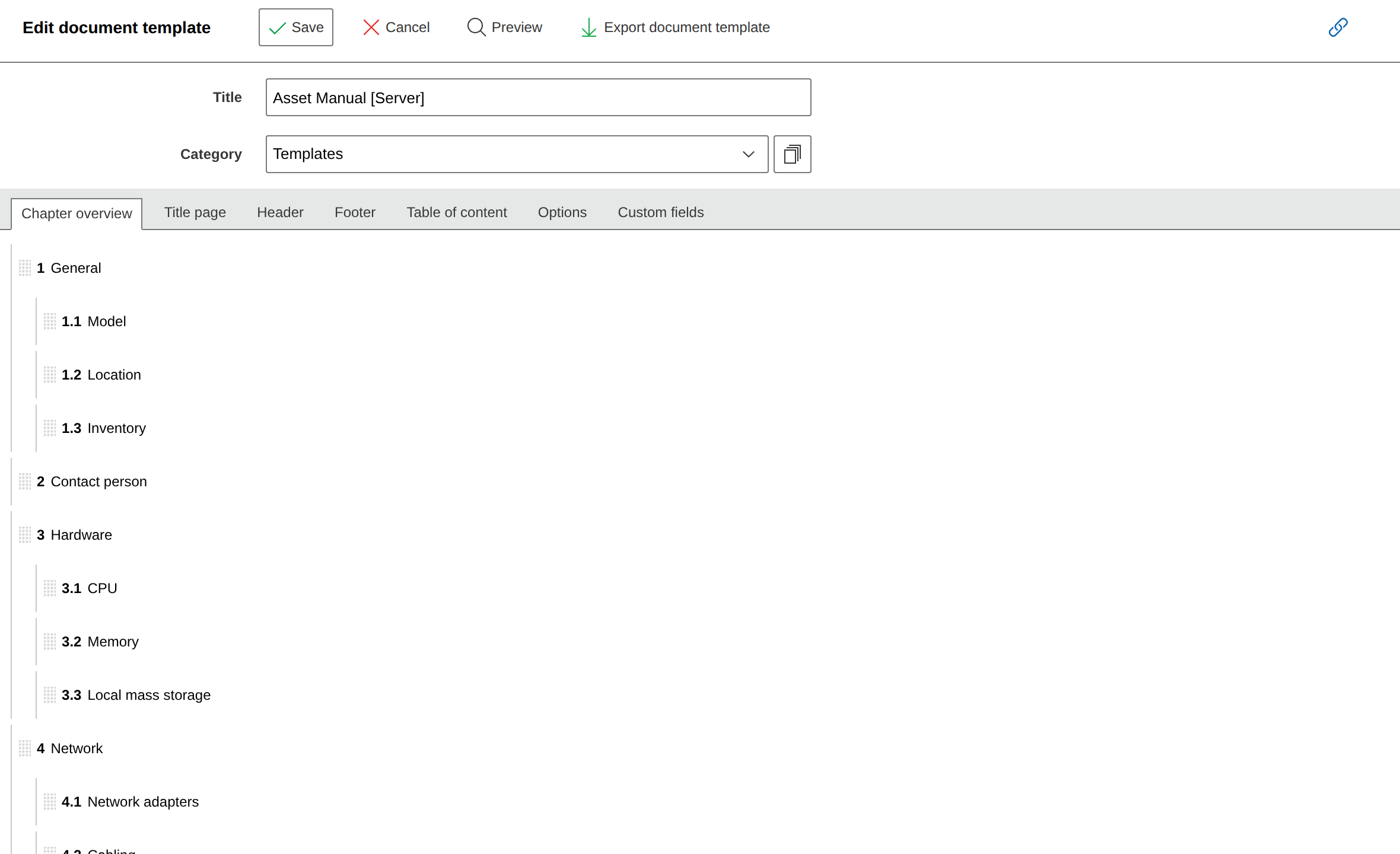
For each chapter, you assign a title that also serves as a heading and appears in the table of contents (if active). Once multiple chapters exist, you select a parent chapter. The "Template Chapter" option allows you to reference an existing chapter. Additionally, you specify whether the chapter uses the available space on the last page of the previous chapter or always starts on a new page.
In the "Content" area, you can copy content from existing chapters into the template if needed.
WYSIWYG Editor#
In the input field, you add the chapter content via the WYSIWYG editor. Via the icons, you insert different types of content. The icons are divided into several areas.

| Field | Description |
|---|---|
 | The first block contains all options for existing text: Paste, Cut, Undo, Redo, Find, Replace, and Select All. |
 | Here you insert hyperlinks, anchor points, images, tables, and horizontal lines. Inserting images Do not insert images via copy & paste -- this stores the files directly in the database and quickly increases its size. Instead, use the image insertion button: via URL or the upload function. Alternatively, you can embed images from the category of the same name via the corresponding placeholder. |
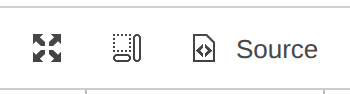 | The last area of the first icon row adjusts the view: full screen view, show text blocks, or switch to source code view. The source code view displays the content unformatted with HTML tags. Here you can enter HTML code independently. While editing in source code mode, all other WYSIWYG editor buttons are disabled. Only after switching back is the HTML code interpreted. |
 | In the second row, you perform text formatting. In addition to the usual options, superscript and subscript are also available. |
 | Here you create lists and quote blocks and select the text alignment. |
 | Here you adjust the text style, including headings, font, and text size. |
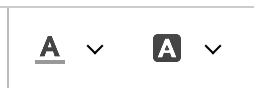 | You adjust text and background colors here. |
 | You dynamically embed content from the documentation via placeholders. Details can be found in the corresponding chapter. |
 | Here you insert an automatic page break. |
Exporting and Importing Templates#
You can export existing templates and import them into other tenants or i-doit installations. To do this, open the template in the editing view and click "Export Document Template." The template is provided as a ZIP file containing all content including inserted images.

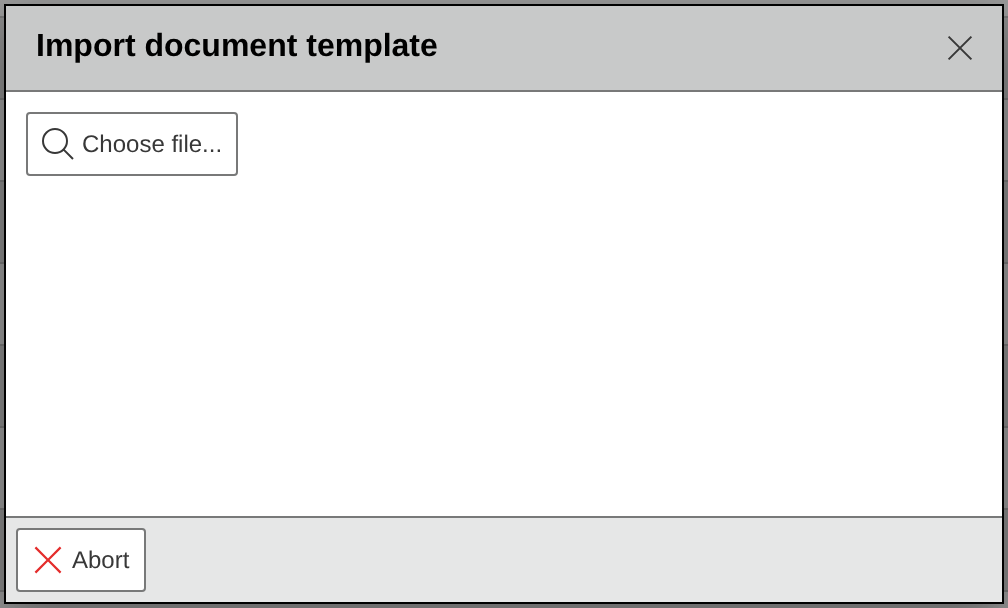
You upload an exported template in the templates list via "Import Document Template." Select the ZIP file from your local system via the browser. The template is then available in the add-on.
Duplicating Document Templates#
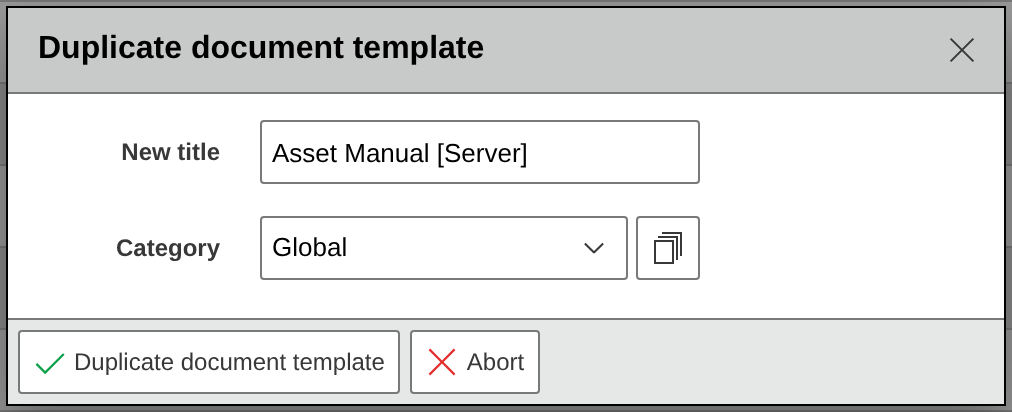
Via "Duplicate Document Template" in the overview, you duplicate existing templates. Select the desired template via the checkbox and click the button. In the following dialog, you specify the name of the duplicate and the target category.
Online Repository#
In the Online Repository, you find ready-made document templates that you can customize to your requirements and use for document creation. After downloading, they are available in your document templates.
Note
For access to the Online Repository to work, the i-doit server must be connected to the internet. Additionally, the selection of available templates depends on the selected i-doit system language.