i-doit QR-Code Printer#
You can find a practical example on our Blog
In i-doit, you automatically generate barcodes or QR codes for all objects. You can use these, for example, to print machine-readable labels. After configuration, the code appears in the upper right corner as soon as you select an object.
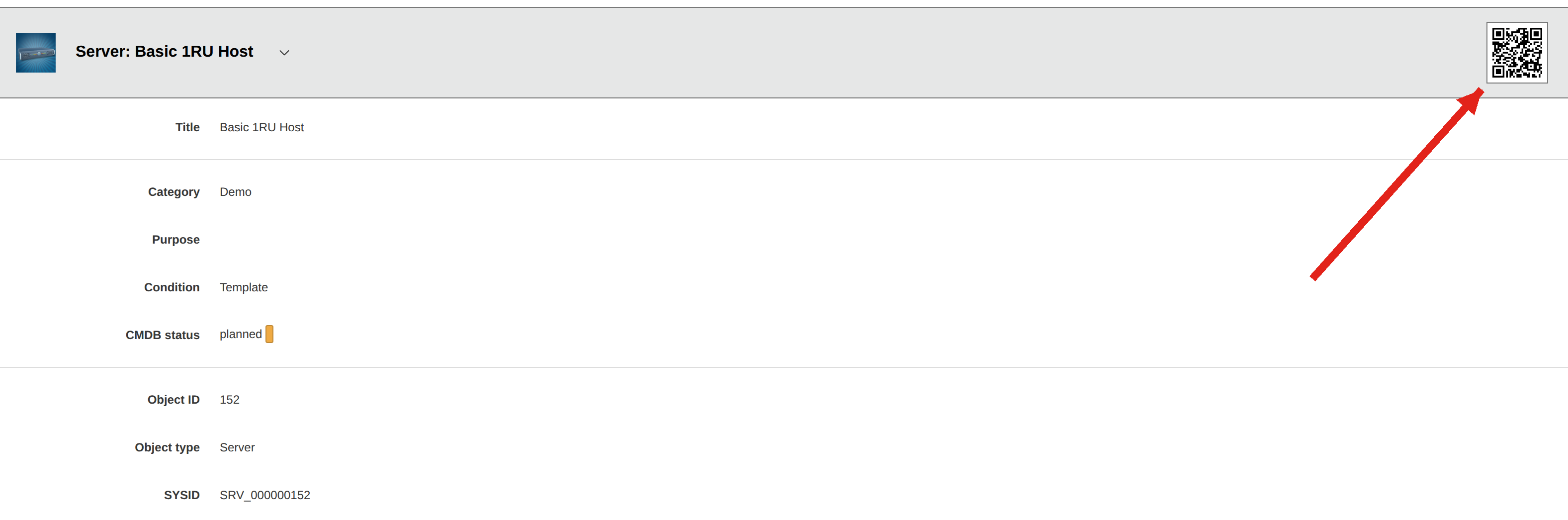
Barcode#
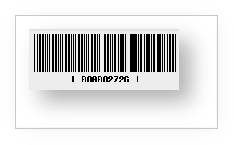
A barcode is an optoelectronically readable font made of bars and gaps of varying widths. The disadvantage: A barcode can only store relatively little information.
QR code#
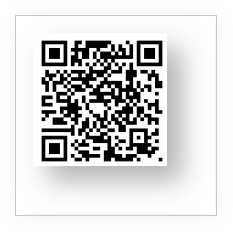
The QR code (Quick Response) is a two-dimensional code with automatic error correction. Its advantage over the barcode: It stores significantly more information.
QR code or barcode configuration#
The configuration within i-doit can be found under Administration → Predefined content → QR code

Here you activate or deactivate the code display and choose between barcode and QR code.
QR code content configuration#
You configure which information is stored in the QR code under Administration → Predefined content → QR code:
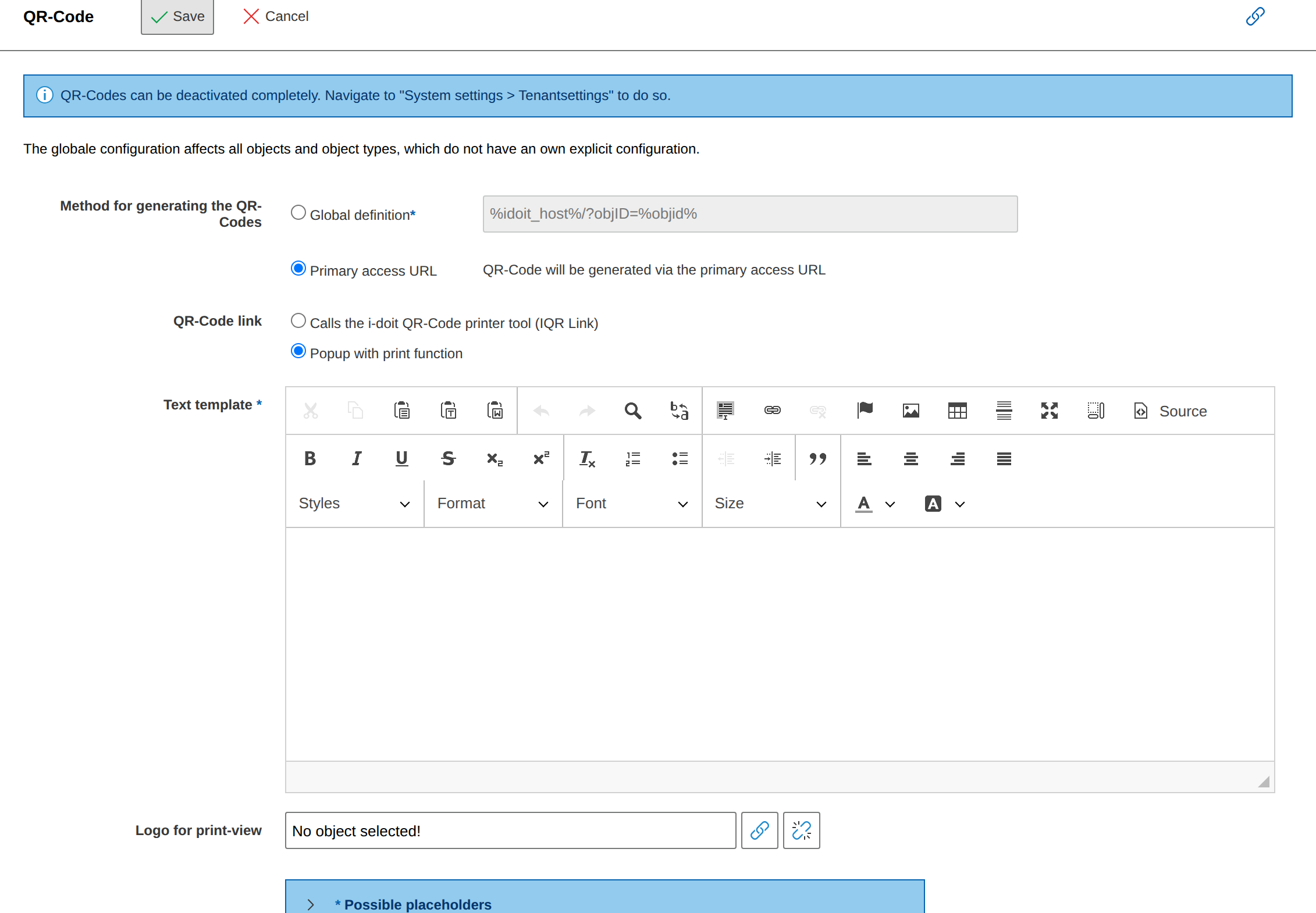
Global definition#
With the global definition, you fill the QR code information using the following placeholders:
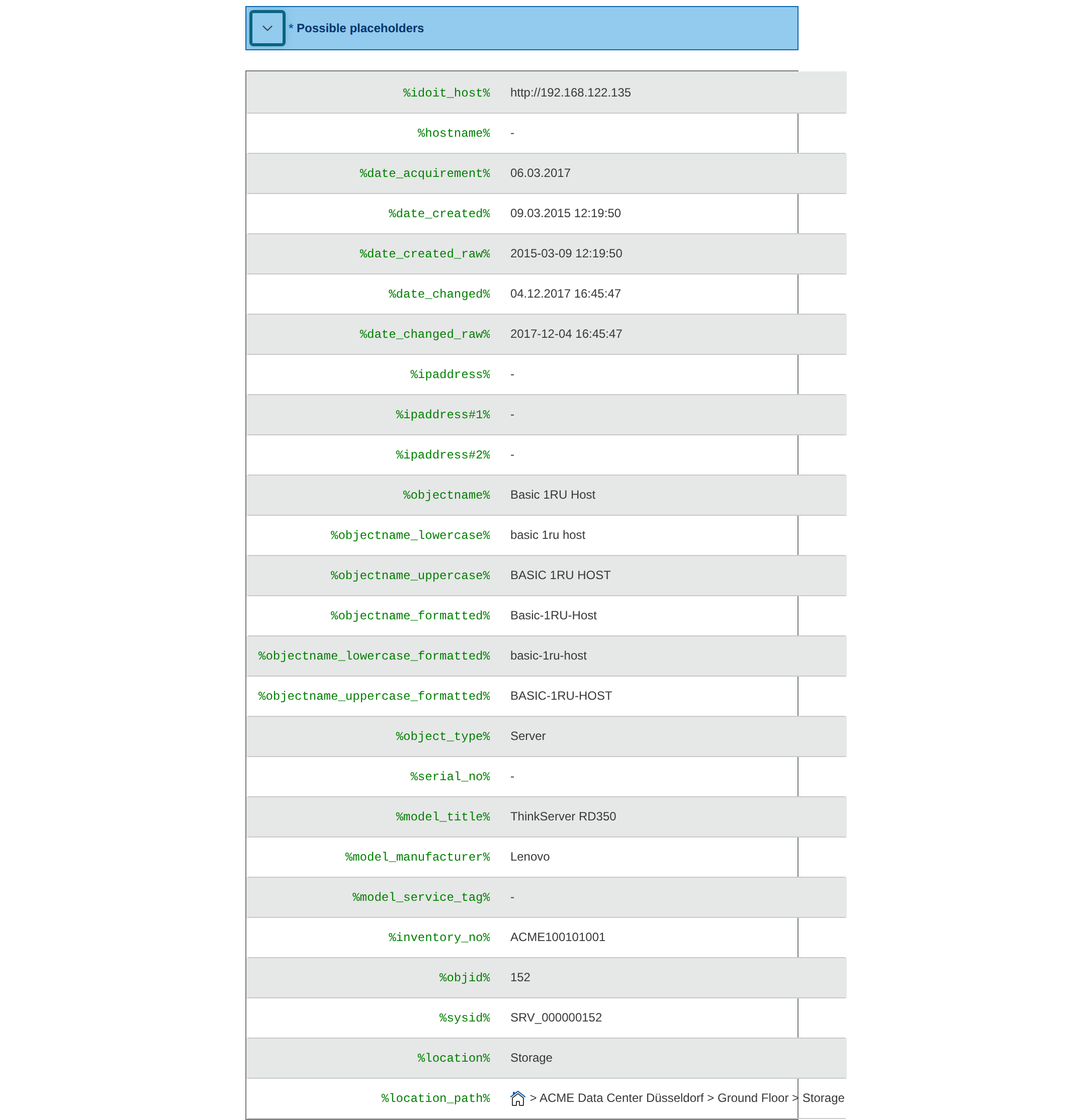
Primary access URL#
With this option, only the URL stored in the object is included in the QR code.
QR code linking#
Specify what happens when clicking on the code: Either the QR Code Printer tool opens or a popup with the standard print function of your operating system.
Text template#
Here you combine free text with placeholders from i-doit and format the label to your requirements.
Logo for print view#
Upload an image file -- it is automatically integrated into every label.
i-doit QR-Code Printer#
With the QR Code Printer, you conveniently print labels on your label printer. You configure the formats to match your specifications. When someone scans the QR code with a smartphone or tablet, they are redirected directly to the overview page of the object.
Start and configuration#
Download the QR Code Printer from the customer portal. The Windows application starts directly -- no installation is required.
To set up the connection:
- Open File → Options → i-doit API Settings.
- Enter the URL of your i-doit installation, the API key, and the credentials of a user with API permission.
The i-doit API key
You can find the API key of your installation in i-doit under Administration → Add-ons → JSON-RPC API
Print parameter configuration#
Under File → Options, you configure all print parameters:
- Margins and label size -- Adjust the dimensions to your label format.
- QR-Code Positioning -- Define position (in pixels), size, font, and font size.
- Logo -- Select a logo in a common image format under Path and position it via the parameters.
Tip
Define the Dymo Label Writer as the default printer and set the paper format to horizontal.
Printing labels#
To print a label:
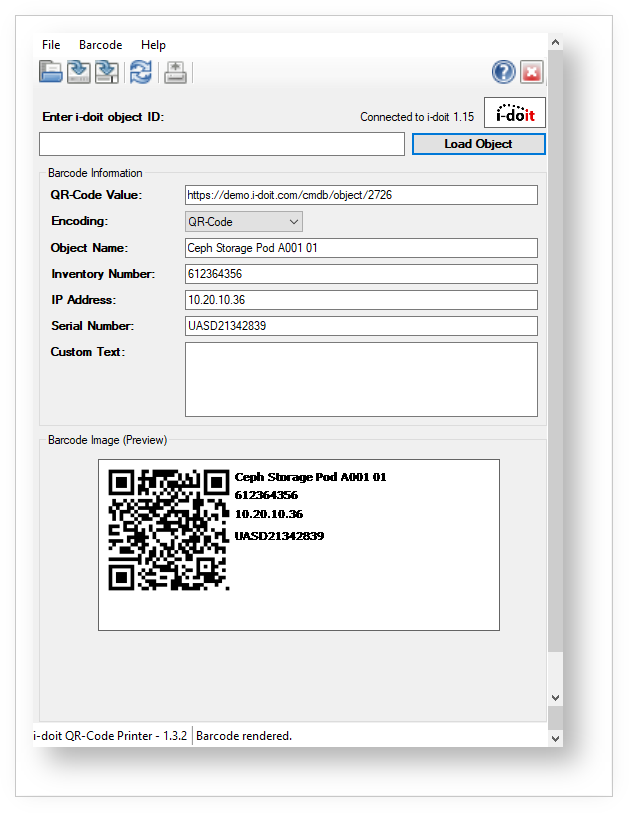
- Enter the object ID of the desired object.
- The barcode information is automatically loaded from i-doit -- you can edit it if needed.
- Print, save, or export the QR code via the icons or File in the context menu. Export is in
.bmpformat.
Releases#
| Version | Date | Changelog |
|---|---|---|
| 1.5 | 24.01.2023 | [Bug] Fix the configuration of the Text margin |