i-doit - Patch Manager Bridge#
This example shows how to create a bridge between i-doit and Patch Manager based on servers.
We use the ability to automatically generate access links in i-doit to open the Patch Manager Launcher with a direct link to a specific object. On the Patch Manager side, we use the external applications feature to link back to i-doit.
i-doit Configuration:#
-
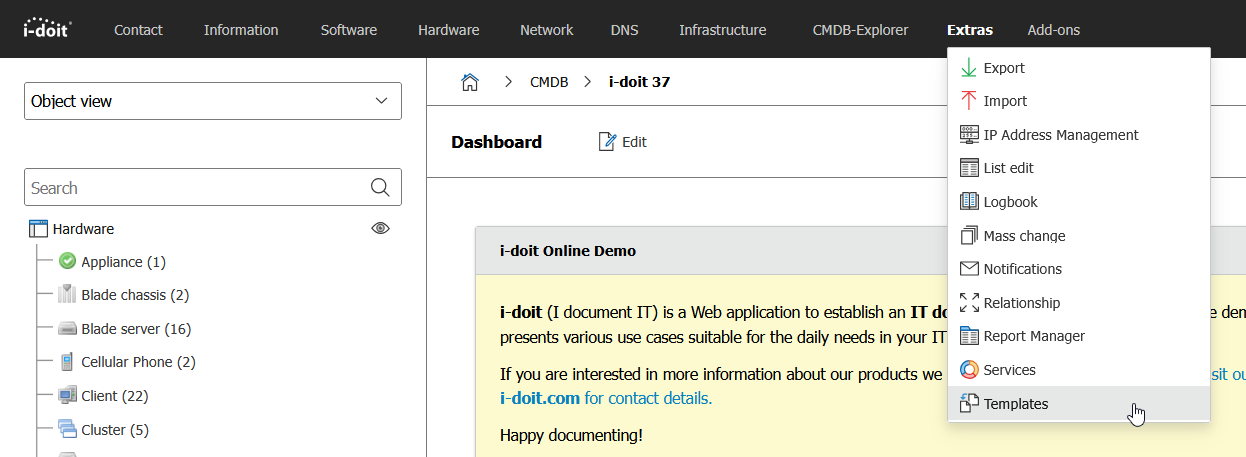
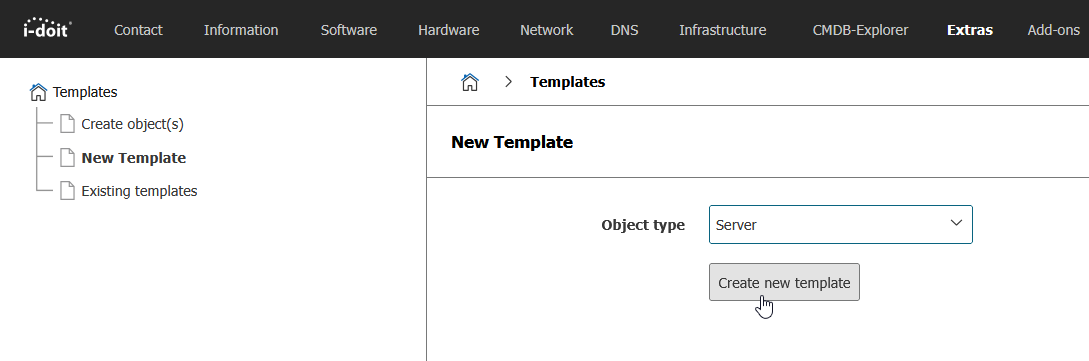
Navigate to "Extras/Templates", click on "New Template" and create a new template with the object type "server".
-
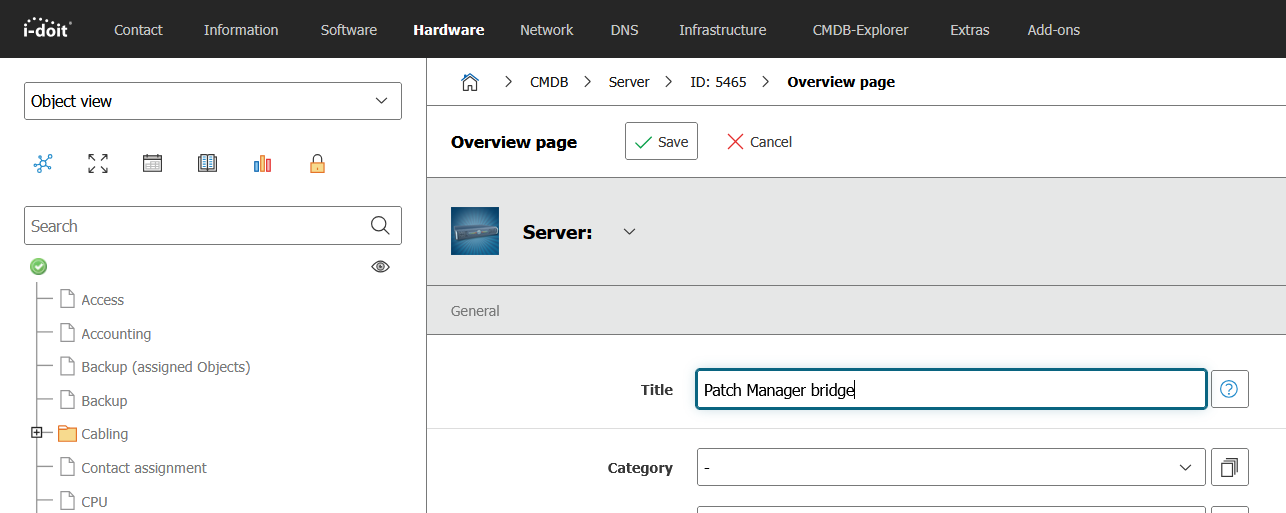
Name the template "Patch Manager bridge"
-
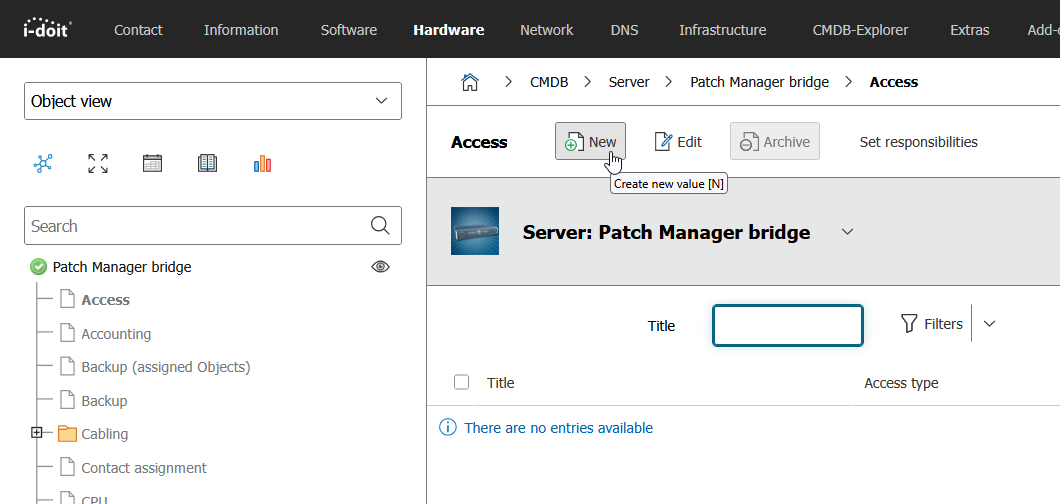
Navigate to the "Access" category and click "New Entry"
-
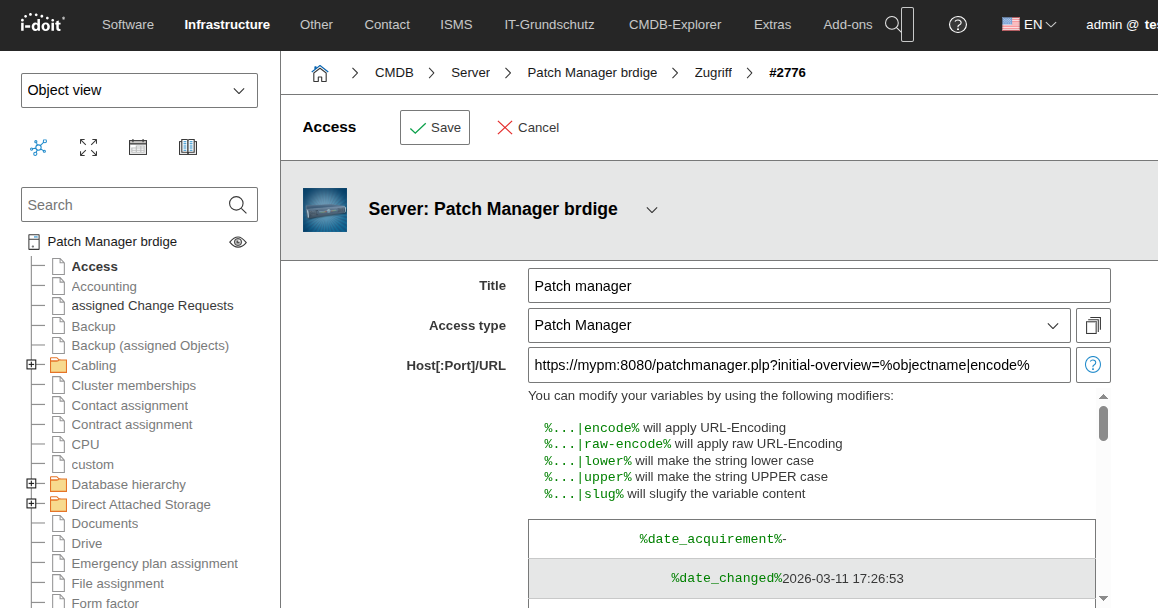
Name the new entry e.g. "Patch manager" and give it a custom type if you want.
-
Enter the URL in the format
http(s)://mypatchmanager.server.com(:myport)/patchmanager.plp?initial-overview=%objectname|encode%, where the variable%objectname%can be replaced by any of the available i-doit placeholder variables. You can get a list of available variables by clicking the info button next to the URL field.
Example:
https://mypatchmanager.com:8080/patchmanager.plp?initial-overview=%objectname|encode%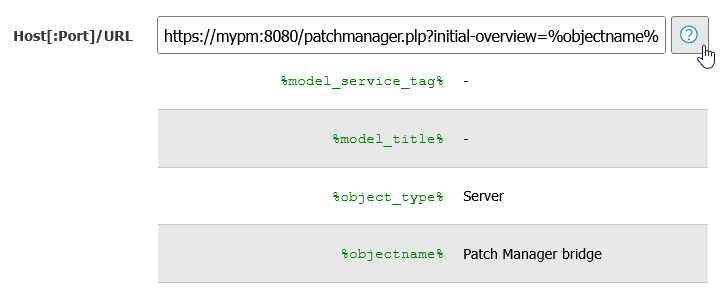
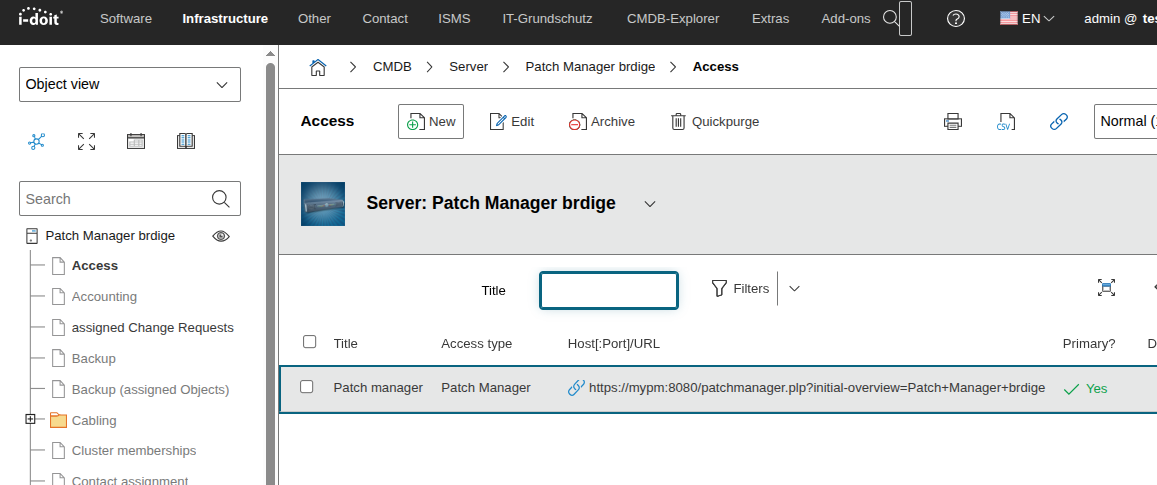
When the user later clicks the link, the Patch Manager Launcher will be opened with this parameter. The value of the URL parameter for Patch Manager can be either the device name or the value of any attribute associated with the device. Patch Manager opens the object that matches the value.
The value must be unique (e.g., if there are two objects namedServer12345, the value will be skipped and the link will default to the parent location overview). -
Save the entry in the "Access" category
-
Click on your profile icon in the top right corner and select "Administration". Then go to "Data Structure" / "Object Types" / "Infrastructure" and select "Server".
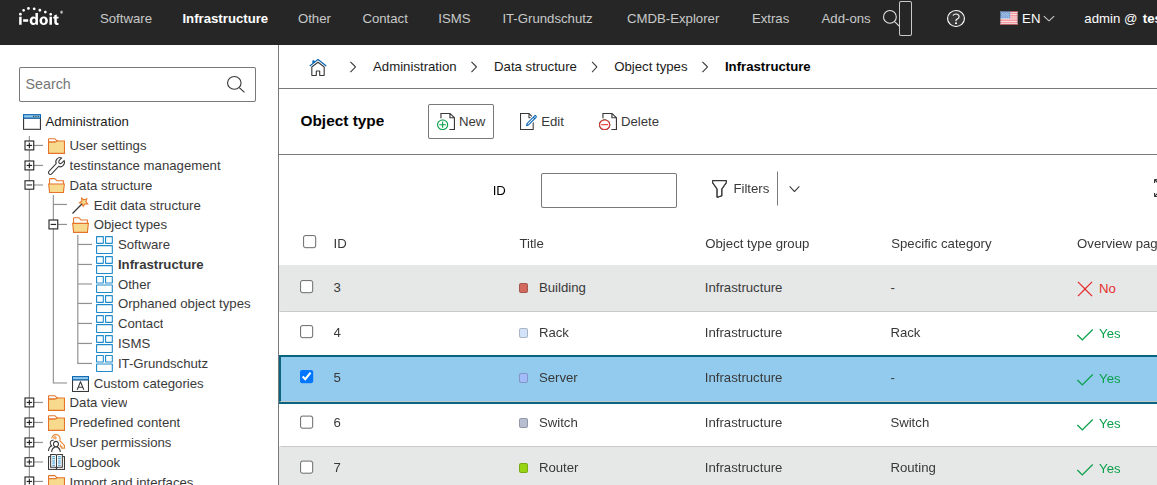
-
Click "Edit" and scroll down to the "Default Template" field. Select the newly created "Patch Manager bridge" template and "Save" the settings.
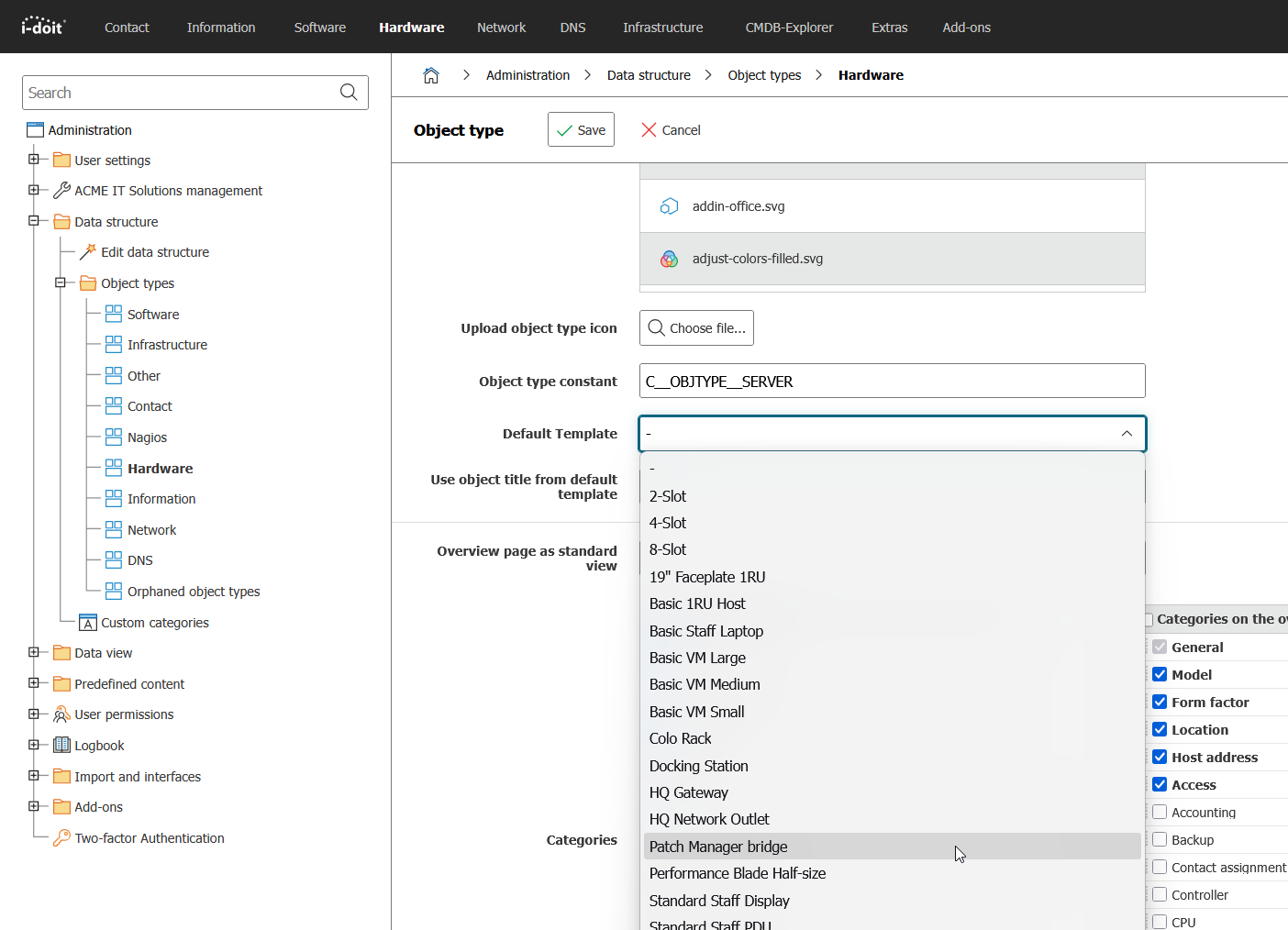
-
The i-doit configuration is complete. Every time a new server is created, the "Default Template" with the entry in the Access category will be applied to the object. You can now easily open "Patch Manager" via the link to switch between the tools.
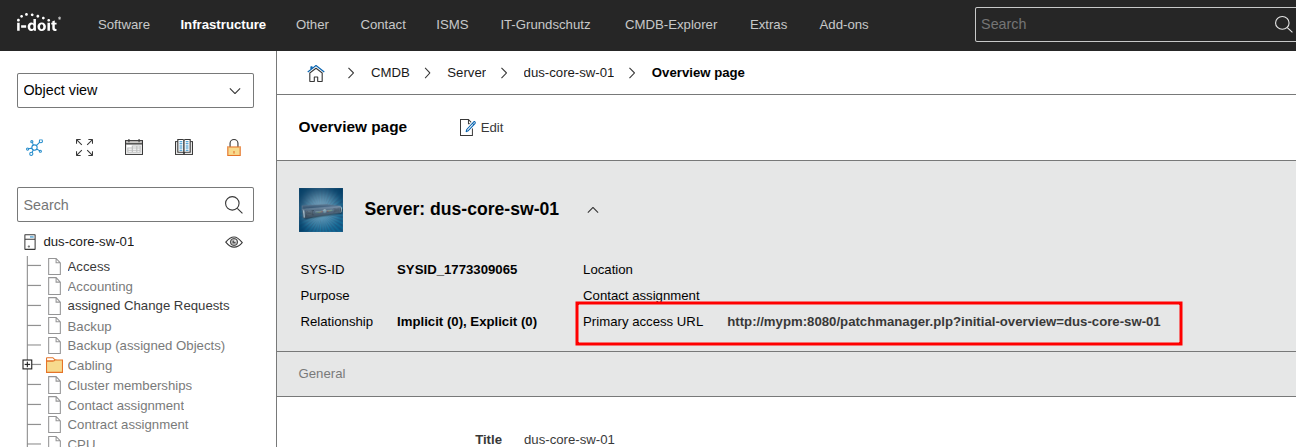
For the URL to be built correctly in i-doit, a hotfix must be applied. The hotfix can be found HERE.
Installing the URL-Router Add-on#
For the bridge to work, you need to install the free i-doit "URL-router" add-on in i-doit. See Add-on installation for details on installing an i-doit add-on.
This add-on is required to provide the /open-object/objectname navigation in i-doit. Without this add-on, the links created by Patch Manager will lead nowhere.
Patch Manager Configuration#
These steps describe the configuration of i-doit as an external application in Patch Manager.
-
Go to the "Administration" / "External Applications Overview" menu.
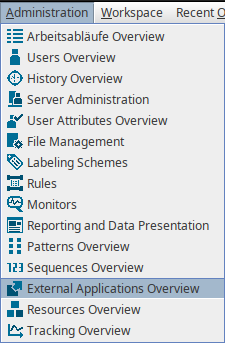
-
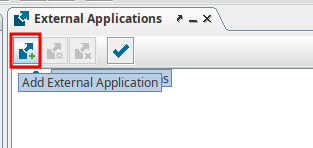
In the "External Applications Overview", add a new "External Application".
-
Enter "i-doit" as the name, "browser" as the "Executable", and then enter the i-doit URL in the following format:
http(s)://my-i-doit.server.com(:myport)/open-object/[Label|url]Example:
https://demo.i-doit.com/open-object/[Label|url]Patch Manager creates a link with the object name as an entry for a third-party application. Once you click this link, the default browser opens and navigates to your i-doit instance. i-doit interprets the Patch Manager label and matches it with the object name. If it finds a unique entry, it opens the respective object.
Optionally advanced usage: The "URL-Router" also provides the following URL routes:/open-object-by-ip/<ip address>/open-object-by-inventory/<inventory no>
You can use these, for example, with the Patch Manager variables[ipaddress]and[inventory]if you have created corresponding custom fields for them.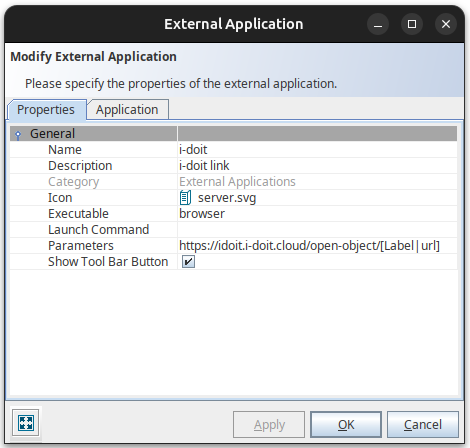
-
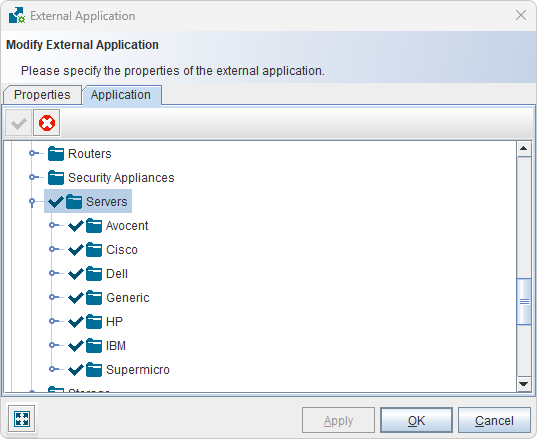
Go to the "Application" tab and apply the application to the object type "Server" (or another object type).
-
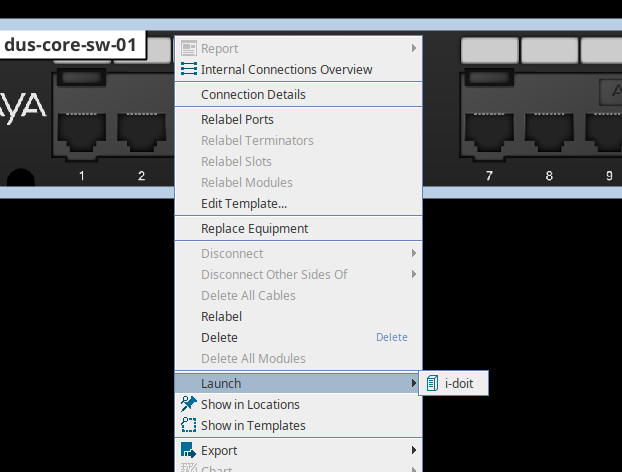
You are done with Patch Manager! To launch the link, right-click on a device and select "Launch" and then the "i-doit" submenu item.