Variable Reports
Introduction#
Variable reports can be used to display object-specific information, unlike regular reports which always produce static results. Object information is viewable in reverse through variable reports, e.g., you can navigate from Object A to Object B and then back from Object B to Object A.
Use Case#
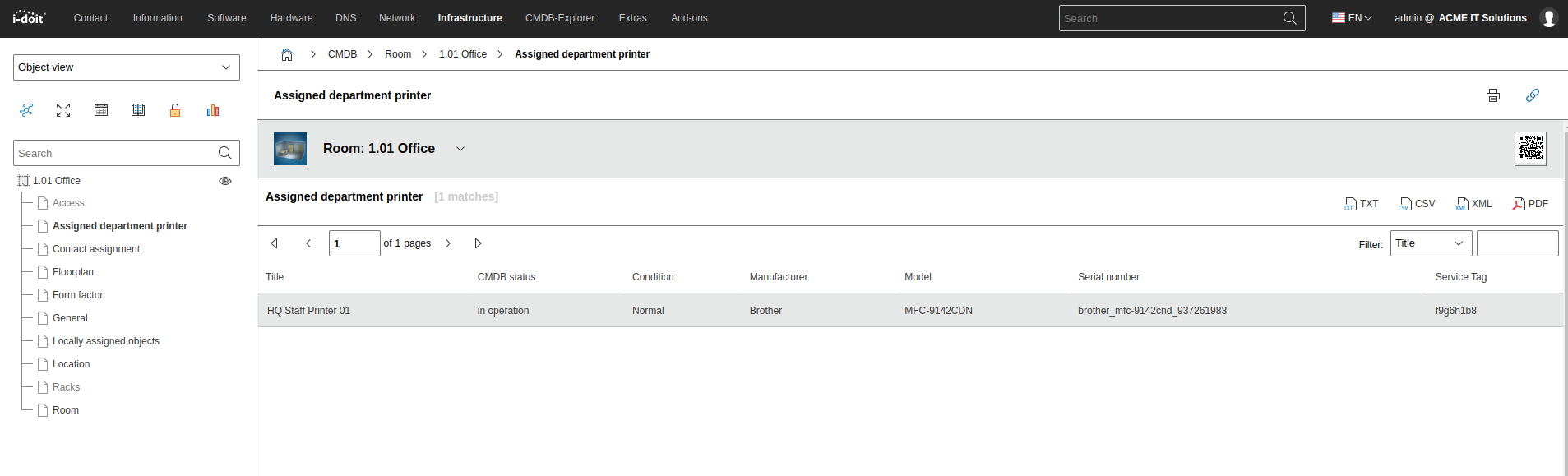
Let us assume that area printers are defined in the organization. Rooms 1.01 through 1.07 use HQ Staff Printer 01, rooms 1.08 through 1.11 use HQ Staff Printer 02. To trace which printer is assigned to which room from both the room and the printer objects, a variable report is used.
Custom Category Area Printer#
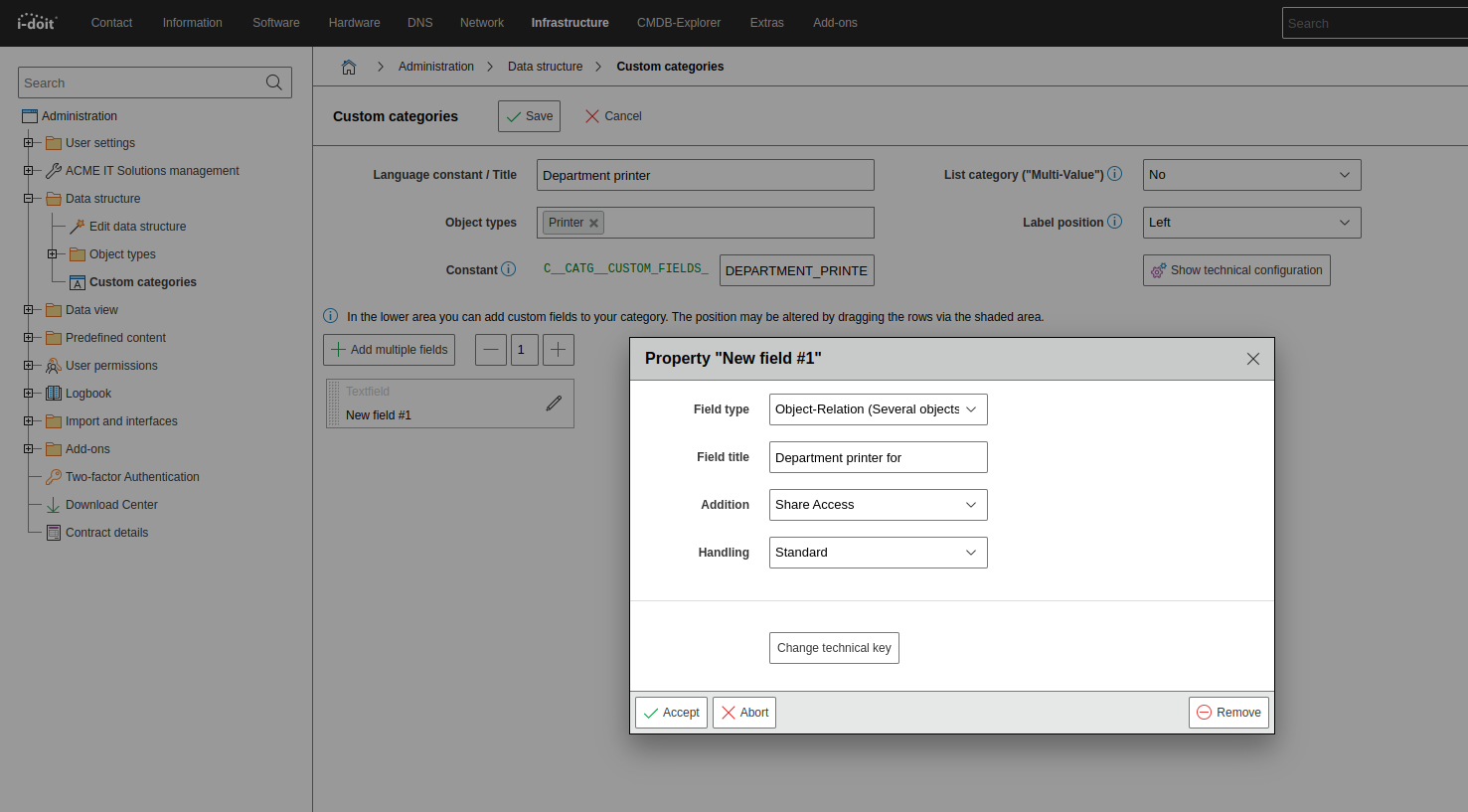
To assign printers to the respective rooms, we create a custom category called Area Printer. This is assigned to the object type Printer and defined as a single-value category. The attribute Area printer for is added as an Object relationship (Multiple objects) with the addition Share access.
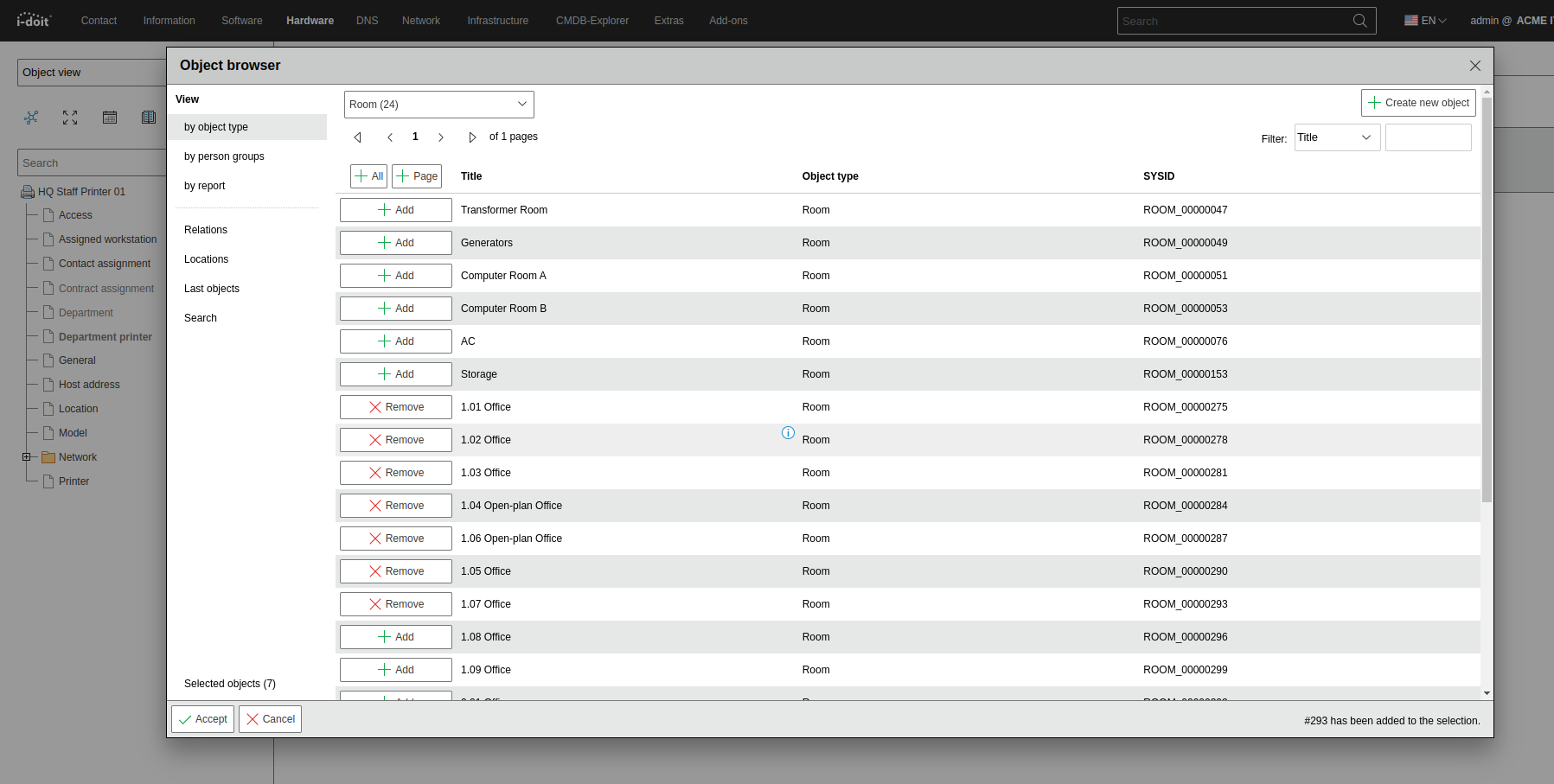
Then switch to the object HQ Staff Printer 01. In the Area Printer category, select the assigned rooms.
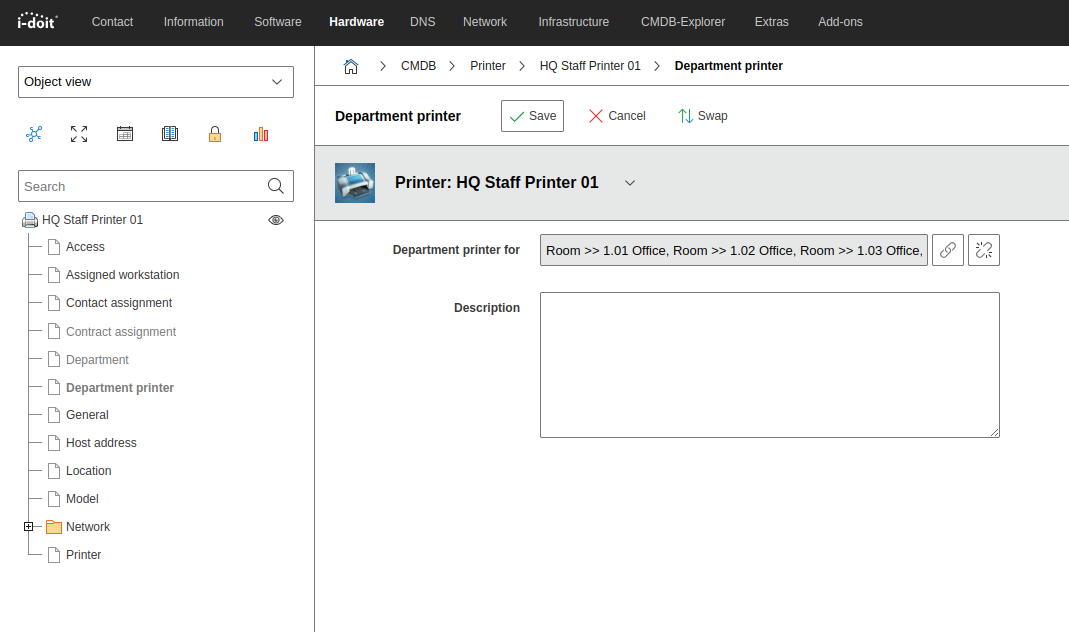
The result in the category looks like the following image.
This can also be visualized with the CMDB Explorer.
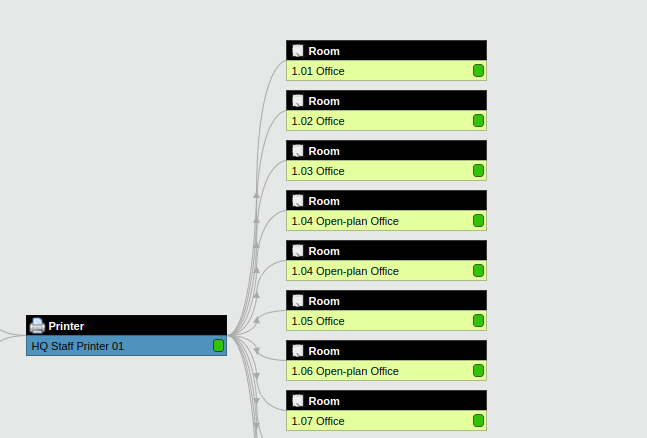
So far so good. But how do you find out, when looking at room 1.05, which area printer is defined for this room? A reverse view is needed to determine which printer is related to this room. Variable reports provide a solution for such context-dependent queries.
For this, a report and another custom category are created. First, the report Assigned Area Printers. Under Output, some interesting printer attributes are selected.
In the query editor, there is the option to set a field placeholder under Conditions for relationships that generate links.
For this use case, this means: The report "searches" for those objects where, in the custom category Area Printer in the attribute Area printer for, the object ID of the currently selected object is entered. But what is the selected object? In the context of the Report Manager, there is no selected object. This turns the report into a variable report.
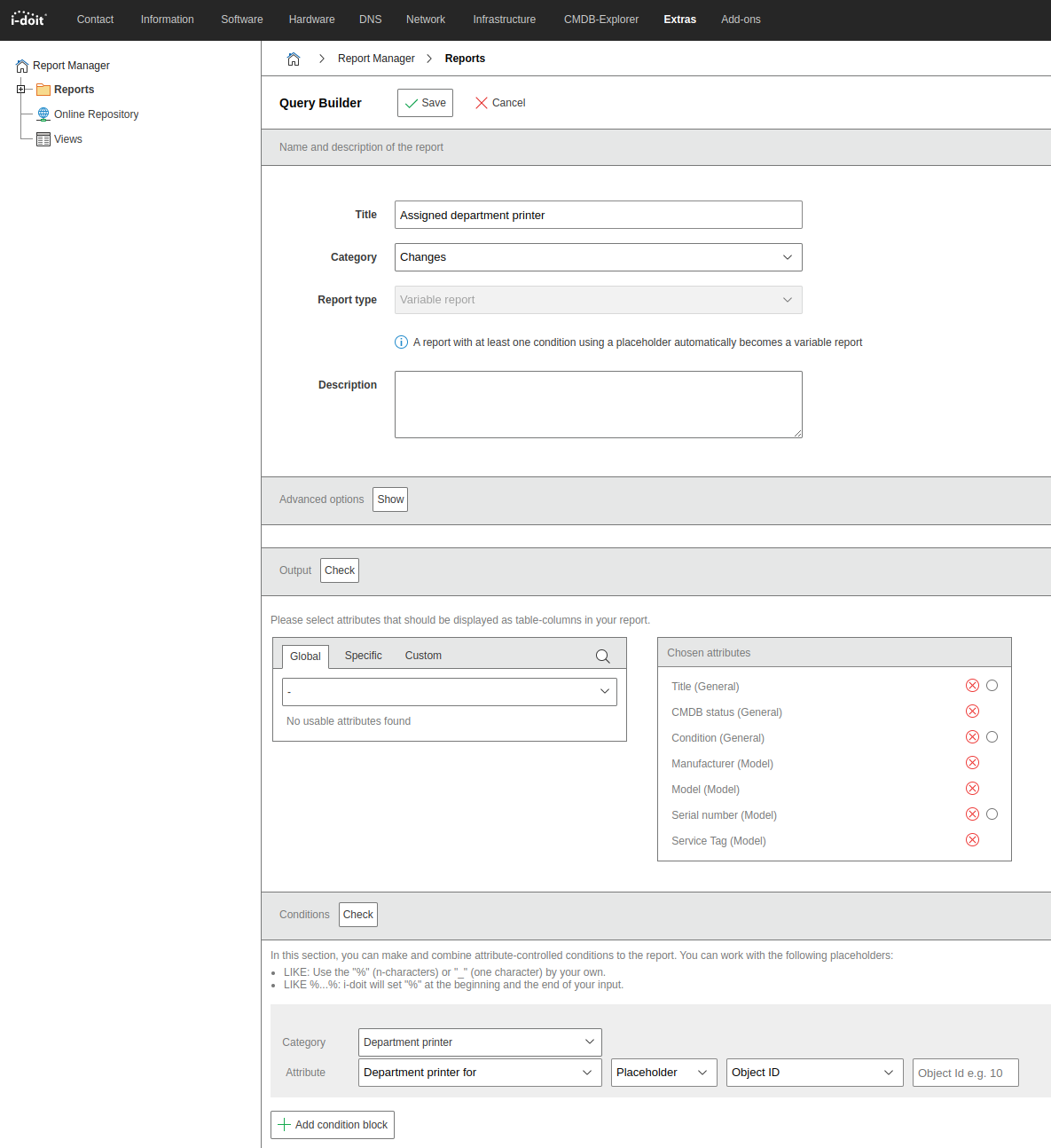
Therefore, an object must always be selected to fill the report. In this case, this is done by creating a category for the report that executes the report within an object. This is called Area Printer Reverse and is assigned to the Room object type as a single-value category. It receives a nameless attribute with the field type Report. Under Addition, you can then select the name of the report created above.
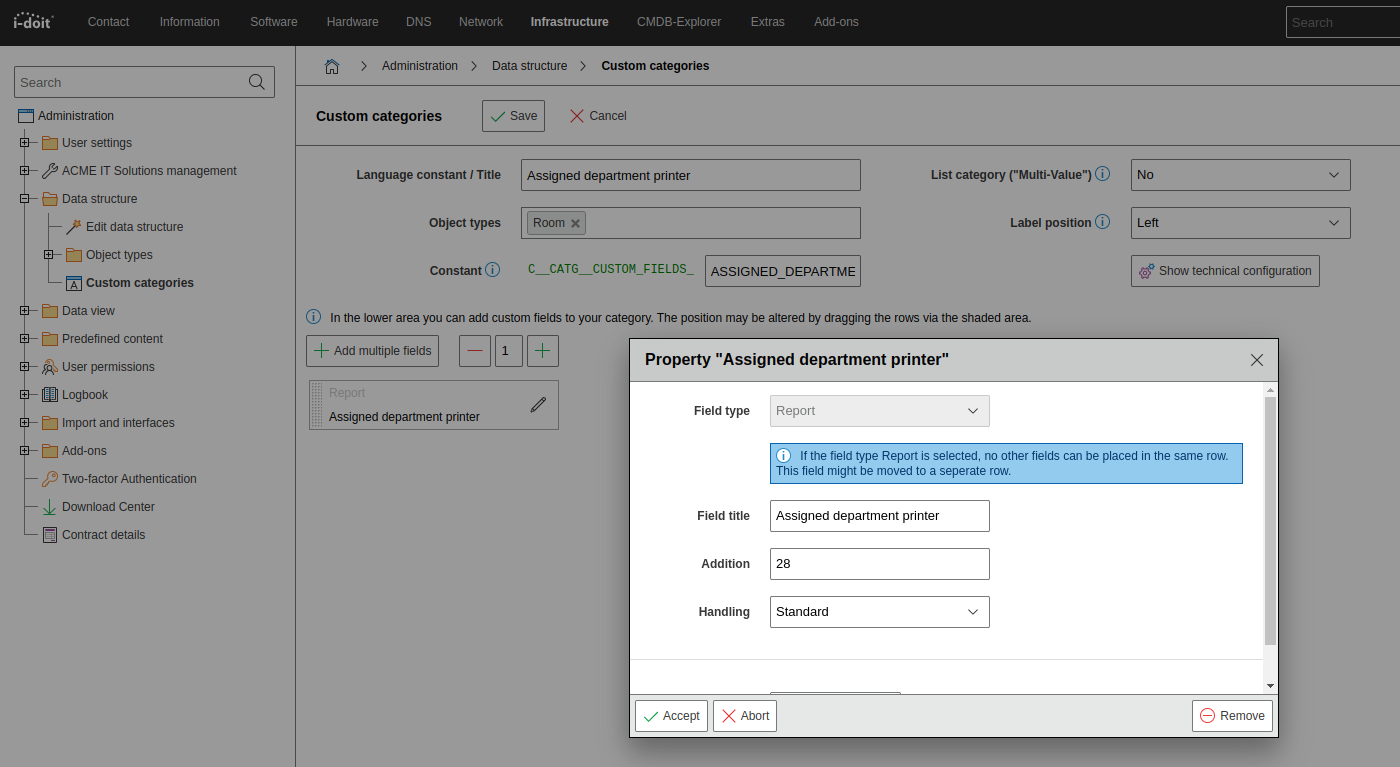
The report ID is included in the overview of already defined reports.

In room objects, the new category is now available, which always executes the report for the object the user is currently in. This provides a reverse view of the relationship to the area printer.